
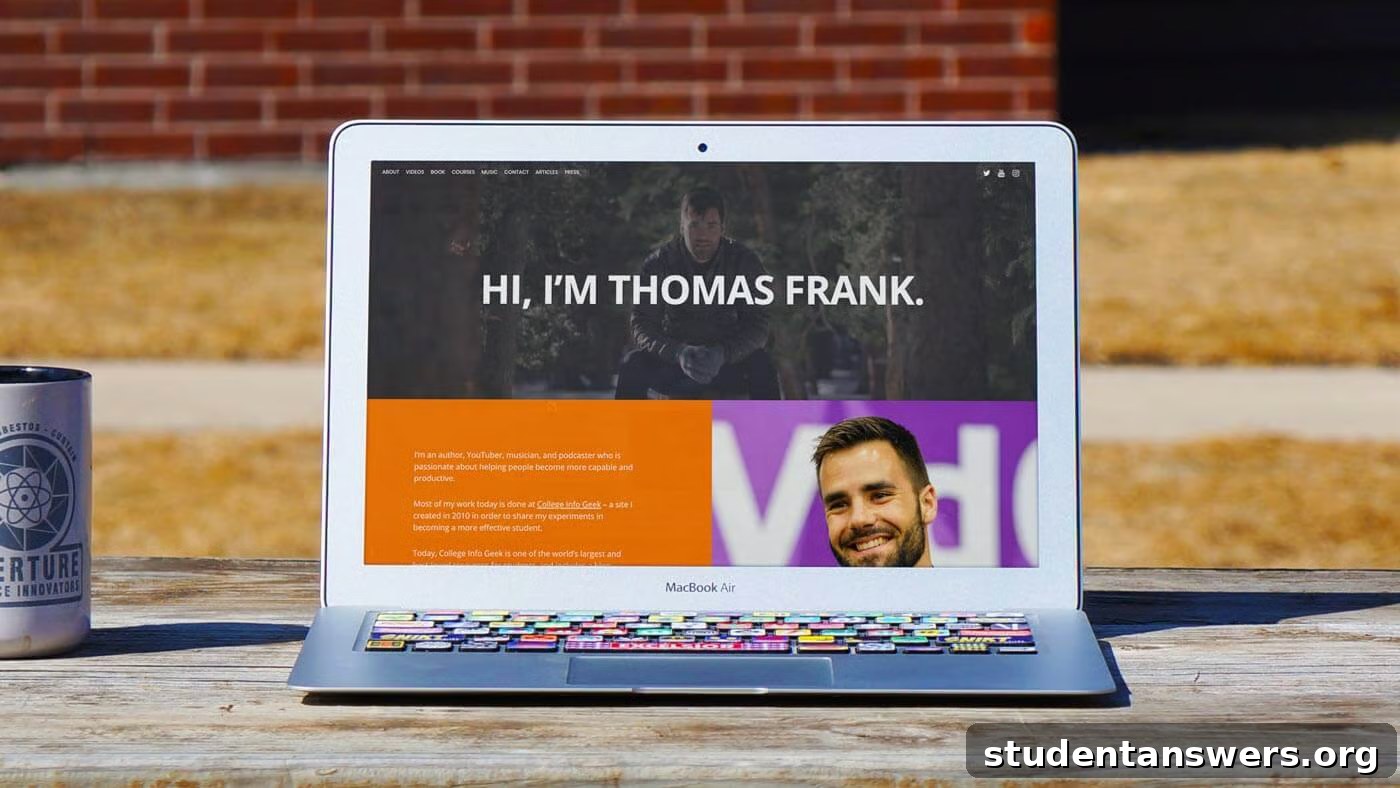
In today’s competitive landscape, your resume is no longer your most powerful networking tool. Think about it: a standard resume is a static, one-page document, often restricted to black and white text. How can that single sheet truly capture your personality, skills, and potential? Once you hand it over, it’s instantly outdated, unable to reflect your latest achievements.
This is where a personal website changes the game. A professional website acts as your dynamic, digital headquarters—a central hub that showcases who you are and what you can do. It’s the modern equivalent of a business card, portfolio, and resume, all rolled into one powerful, ever-evolving platform. Not having one is a missed opportunity to control your online narrative and stand out from the crowd.
Why Every Student and Professional Needs a Personal Website
If you’re still on the fence, let’s explore the transformative benefits of creating your own digital space. A personal website is far more than just an online document; it’s a strategic asset for your career.
1. It’s a Dynamic and Evolving Portfolio
Unlike a paper resume, your website is alive. Finished a new project? Add it to your portfolio page in minutes. Learned a new skill? Update your “About Me” section. Your website grows with you, providing a real-time, comprehensive look at your capabilities. Visitors can return again and again to see your progress and latest work, something a static PDF could never offer.
2. You Control Your Online Presence
When a potential employer, client, or collaborator searches your name online, what will they find? Without a personal website, they might only see your social media profiles, which may not present the professional image you want. A website puts you in the driver’s seat. You decide what they see first, allowing you to establish a strong personal brand and highlight your most impressive accomplishments. It ensures that your professional story is told your way.
3. It Makes You More Discoverable
A personal website significantly increases your visibility. I have personally received job offers, secured freelance clients, and landed interviews simply because people found my website through a Google search. By optimizing your site with keywords related to your field and skills, you open the door to opportunities you might have otherwise never known existed. You’re not just applying for jobs; opportunities can find you.
4. You Gain a Competitive Edge and Valuable Skills
While becoming more common, the majority of students and job applicants still rely solely on traditional methods. Having a well-crafted personal website immediately sets you apart. It demonstrates initiative, technical aptitude, and a commitment to your professional development. Furthermore, the process of building it teaches you valuable digital skills—from understanding web hosting and content management systems to basic SEO—that are highly sought after in any industry.
Ready to Build Your Online Hub?
This comprehensive guide will walk you through every step of creating a professional personal website, even if you have zero coding experience. We’ve designed this tutorial to be the only resource you’ll need, taking you from a blank slate to a polished online presence in just a couple of hours.
In this guide, you will learn to:
- Secure a professional domain name and reliable web hosting.
- Install WordPress, the world’s most popular website builder, with just a few clicks.
- Design your site with a beautiful, modern theme.
- Enhance functionality with essential plugins for security, speed, and SEO.
- Optimize your site to rank in search engines like Google.
All you need to get started is the ability to follow instructions. You won’t need to know HTML, CSS, or any other programming language. Let’s begin.
Full Disclosure: This guide recommends certain products and services. If you make a purchase through our links, we may earn a commission at no extra cost to you. We only recommend tools we trust and have used ourselves. Your support helps us keep this content free. Thank you!
Step 1: Secure Your Domain Name and Hosting
Your first step is to establish your online address (your domain name) and the plot of land where your website will live (your web hosting). While free platforms like WordPress.com or Tumblr exist, a self-hosted website on your own domain (e.g., YourName.com) is far more professional and impressive. It signals a serious investment in your personal brand.
How to Choose a Professional Domain Name
Your domain name is your digital identity, so choose wisely. Here are some simple rules to follow:
- Use Your Name: The gold standard is YourFirstNameLastName.com. If that’s taken, try adding a middle initial (JohnFSmith.com) or a word that describes your profession (JaneDoeDesign.com).
- Keep it Simple: Your domain should be easy to say, spell, and remember. Avoid numbers and hyphens, as they can be confusing when shared verbally.
- Choose the Right Extension: .com is universally recognized and preferred. However, .me or .co are also excellent, modern alternatives for personal sites. Avoid unprofessional extensions like .biz or .info.
Setting Up Your Hosting Account
Web hosting is a service that stores your website’s files and makes them accessible to visitors around the world. For beginners, a shared hosting plan is the most affordable and practical option.
We recommend HostGator for its reliability, affordability, and excellent customer support. Their plans are budget-friendly, and new customers often receive a free domain name for the first year, simplifying the process.
Here’s how to get started:
- Visit HostGator’s Website: Navigate to their site and click “Get Started.”
- Choose the Hatchling Plan: This entry-level plan is perfect for a single website and provides everything you need.
- Register Your Domain: On the next screen, enter your desired domain name to see if it’s available. If you purchase a plan for 12 months or more, your .com, .net, or .org domain is typically free for the first year.
- Consider Domain Privacy: We recommend adding Domain Privacy Protection. This service hides your personal contact information (name, address, email) from public databases, preventing spam and unwanted solicitations.
- Confirm Your Plan and Billing: Select your billing cycle (a longer term offers a better price) and fill in your account and payment information.
- Review Hosting Add-ons: You can safely uncheck most of the add-ons. HostGator already includes a free SSL certificate, which is essential for security, so there’s no need to purchase an upgraded one.
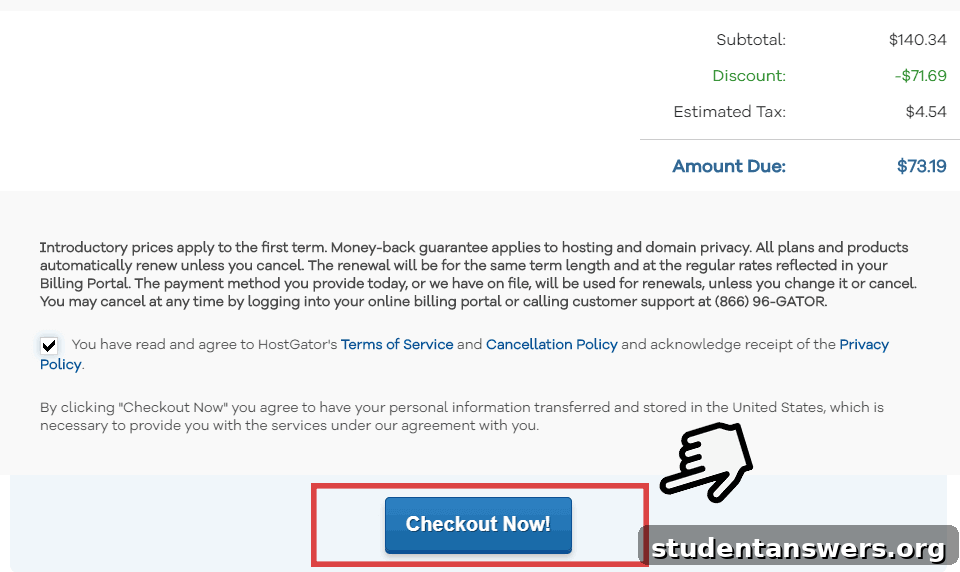
- Complete Your Purchase: Review your order details and click the final checkout button. You’ll soon receive an email with all your account login information.
Step 2: Install and Configure WordPress
With your domain and hosting secured, it’s time to install the software that will power your website: WordPress. WordPress is a Content Management System (CMS) that powers over 40% of the internet. It’s incredibly powerful yet user-friendly, allowing you to build and manage a professional website without any coding knowledge.
One-Click WordPress Installation
HostGator makes installing WordPress incredibly simple.
- Log into Your Control Panel (cPanel): Use the link and login details from your welcome email. The URL is typically yourdomain.com/cpanel.
- Find the WordPress Installer: Look for an icon labeled “WordPress Manager by Softaculous” or a similar one-click installer in the “Software” section.
- Start the Installation: Click “Install” to begin the setup process.
- Configure Your Settings:
- Select your domain name from the dropdown menu. Leave the “Directory” field blank to install WordPress on your main domain.
- Enter your Site Name (e.g., your name) and a short Site Description.
- Create a secure Admin Username and Password. Do not use “admin” as your username.
- Enter your Admin Email address.
- Click Install at the bottom of the page.
Once the installation is complete, you can access your WordPress dashboard by navigating to yourdomain.com/wp-admin. Bookmark this URL for easy access.
Essential First Steps in WordPress
Before you start adding content, let’s configure a few key settings for a clean and professional setup.
1. Clean Up Default Plugins: WordPress installations sometimes come with pre-installed plugins. Navigate to Plugins in your dashboard. Deactivate and delete any you don’t need, such as MOJO Marketplace or Hello Dolly. Keep Akismet (for spam protection if you have a blog) and any SEO plugin like Yoast SEO.
2. Activate SSL (HTTPS): Your free SSL certificate makes your site secure (showing a lock icon in the browser). To enable it, go to Plugins > Add New and search for “Really Simple SSL.” Install and activate it. A prompt will appear to enable SSL. Click it, and your site will now use the secure `https://` protocol.
3. Set Your Permalink Structure: For better SEO and more readable URLs, you need to change your permalink structure. Go to Settings > Permalinks, select the “Post name” option, and click “Save Changes.” This will change your URLs from `yourdomain.com/?p=123` to a clean format like `yourdomain.com/about-me`.
Step 3: Create Your Core Pages and Content
Now for the creative part: building out the pages of your website. For a personal website, you should start with a few essential pages that tell your story and showcase your value.
Essential Pages for Your Website
- Homepage/About Me: This is the first page visitors will see. It should include a professional photo of yourself, a concise introduction about who you are, what you do, and what you’re passionate about.
- Portfolio/Work: This is where you showcase your projects. Whether you’re a designer, writer, developer, or marketer, this page should feature your best work with brief descriptions of each project.
- Resume/CV: Create a dedicated page for your professional experience, education, skills, and accomplishments. This digital resume is always up-to-date and easily accessible.
- Contact: Make it easy for people to get in touch. Include links to your professional social media profiles (like LinkedIn) and a contact form instead of listing your email address publicly to avoid spam.
Creating a New Page
- In your WordPress dashboard, navigate to Pages > Add New.
- Add a title for your page (e.g., “About Me”).
- Use the block editor to add your content. You can add paragraphs, headings, images, and more by clicking the “+” icon.
- When you’re finished, click the “Publish” button.
Repeat this process for all your essential pages.
Setting Your Homepage
By default, WordPress displays your blog posts on the front page. To set your “About Me” page as the homepage:
- Go to Settings > Reading.
- Under “Your homepage displays,” select “A static page.”
- For the “Homepage,” choose your newly created “About Me” page from the dropdown menu.
- If you plan to have a blog, create a blank page named “Blog” and select it as the “Posts page.”
- Click “Save Changes.”
Step 4: Design Your Website with a Theme
A WordPress theme is a design template that controls the visual appearance of your site. There are thousands of free and premium themes available, allowing you to create a beautiful website without any design skills.
Choosing a Great Theme
Look for a theme that is:
- Responsive: It should look great on all devices, including desktops, tablets, and smartphones.
- Well-Reviewed: Check the ratings and reviews to ensure it’s reliable and well-supported.
- Customizable: A good theme offers options to change colors, fonts, and layouts to match your personal brand.
For a versatile and free option, we recommend a theme like Astra or Kadence. Both are lightweight, highly customizable, and perfect for personal portfolios. For this guide, let’s assume you’re installing a free theme from the WordPress repository.
Installing Your Theme
- In your dashboard, go to Appearance > Themes.
- Click the “Add New” button at the top.
- Use the search bar to find a theme you like (e.g., “Astra”).
- Hover over the theme and click “Install,” then click “Activate.”
Customizing Your Site’s Appearance
Once your theme is active, you can personalize it using the WordPress Customizer. Go to Appearance > Customize. This will open a live preview of your site with a panel of options on the left. Here, you can upload a logo, change your site’s colors, adjust typography, and more. Each theme has different options, so take some time to explore.
Setting Up Your Navigation Menu
A clear navigation menu helps visitors find their way around your site.
- Go to Appearance > Menus.
- Give your menu a name (e.g., “Main Menu”) and click “Create Menu.”
- On the left, you’ll see a list of your pages. Check the boxes for the pages you want to add to your menu and click “Add to Menu.”
- Drag and drop the menu items to reorder them.
- Under “Menu Settings,” assign the menu to a display location, such as “Primary Menu.”
- Click “Save Menu.”
Step 5: Enhance Your Site with Essential Plugins
Plugins are like apps for your website; they add new features and functionality. Here are a few essential plugins for any personal website.
- Yoast SEO or Rank Math: These all-in-one SEO plugins guide you through optimizing your pages and posts to rank higher in search results.
- WPForms Lite: An easy-to-use, drag-and-drop form builder to create a secure contact form for your “Contact” page.
- UpdraftPlus: An essential backup plugin. Schedule regular, automatic backups of your entire site to a remote location like Dropbox or Google Drive for peace of mind.
- WP Super Cache: A caching plugin that dramatically speeds up your website’s loading time, improving user experience and SEO.
To install a plugin, go to Plugins > Add New, search for the plugin by name, and click “Install Now,” followed by “Activate.”
Congratulations, Your Website is Live!
You now have a fully functional, professional personal website! This digital hub is a powerful tool for building your brand and advancing your career. To make the most of it, be sure to:
- Add your website URL to the top of your resume and in your email signature.
- Link to your site from all your social media profiles, especially LinkedIn.
- Share your work regularly, whether through a portfolio or a blog, to demonstrate your expertise.
Your online journey has just begun. Continue to update your site with your latest accomplishments and projects, and watch as it opens doors to new and exciting opportunities.