
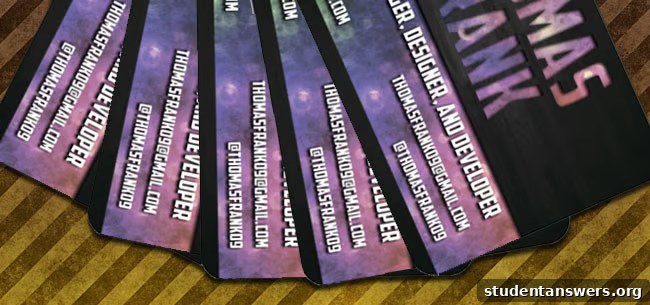
How to Design a Professional Business Card: A Step-by-Step Photoshop Tutorial
In the world of networking, making a memorable first impression is everything. Whether you’re navigating a bustling career fair or meeting a potential client, you need a way to stand out. While a firm handshake and a confident introduction are crucial, a tangible piece of your personal brand can leave a lasting impact. That’s where a well-designed business card comes in. It’s more than just a piece of paper with your contact details; it’s a powerful networking tool.
Forget the generic, boilerplate templates offered by your university or free online services. A custom-designed business card communicates professionalism, creativity, and attention to detail before a recruiter even visits your portfolio. It acts as the physical link between your conversation and your online presence, ensuring you won’t be forgotten in a sea of applicants. This guide will walk you through a complete tutorial on how to design a stunning, professional business card using Adobe Photoshop and how to get it printed affordably.
Important Note: A business card is most effective when it directs people to a central hub for your work and professional identity. Before you begin this tutorial, we strongly recommend creating your own personal website. It’s the ultimate destination to showcase your skills, projects, and resume, and its URL is the most valuable piece of information you can put on your card.
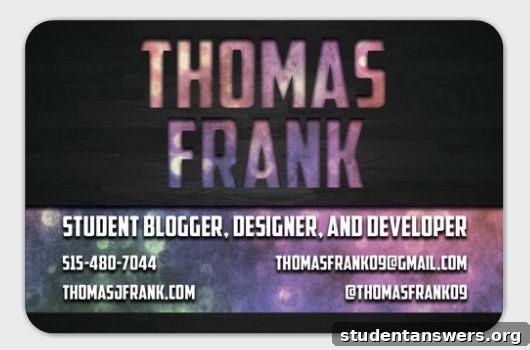
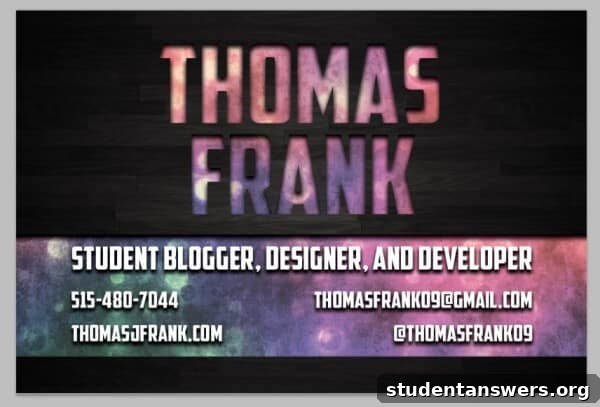
By the end of this tutorial, you’ll have created a design similar to this, customized with your own information:
Why a Custom Business Card Matters
In a digital age, you might wonder if business cards are still relevant. The answer is a resounding yes. A physical card is less likely to get lost in a crowded inbox. It’s a personal touch that shows you came prepared. A custom design elevates this even further:
- It’s a Conversation Starter: A unique design often prompts comments, opening the door for a more memorable conversation.
- It Showcases Your Skills: If you’re in a creative field, the card itself is a mini-portfolio piece. For any field, it demonstrates a commitment to quality.
- It Reinforces Your Brand: Your card should visually align with your personal website and portfolio, creating a cohesive and professional brand identity.
- It Conveys Professionalism: Taking the time to create a custom card signals that you are serious about your career and professional image.
Gathering Your Design Toolkit
Before we dive into Photoshop, you’ll need to assemble a few key resources. Having these ready will make the design process smooth and efficient.
- Adobe Photoshop: This tutorial uses Photoshop CS5, but the steps are easily adaptable to newer versions or even older ones. If you don’t own Photoshop, you can download a free 30-day trial from Adobe. As a student, you may also be eligible for a significant educational discount on the full Creative Cloud suite. While a free alternative like GIMP can be used, the specific tools and menu locations may differ.
- High-Quality Textures: The visual appeal of our card comes from layered textures. We’ll be using two excellent, free-to-use patterns from Subtle Patterns.
- Dark Wood Texture Pack: This will serve as our card’s background.
- Grungy Abstract Bokeh Texture Pack: This will add a stylish overlay to our text.
- A Professional Font: Typography is key to a great design. For this tutorial, we will use a bold and clear font that makes a statement.
- American Captain Font: This font is strong and highly readable, perfect for showcasing the text effects we’ll be applying. Feel free to choose another font that reflects your personal style, but ensure it is easy to read at small sizes.
Once you have Photoshop installed and have downloaded the textures and font, you’re ready to start designing.
Step-by-Step Photoshop Tutorial for Your Business Card
Let’s begin the creative process. This tutorial is designed for beginners, so we will go through each step in detail. (Note: Mac users will use the CMD key, while Windows users should substitute the CTRL key for all keyboard shortcuts.)
Step 1: Setting Up the Document
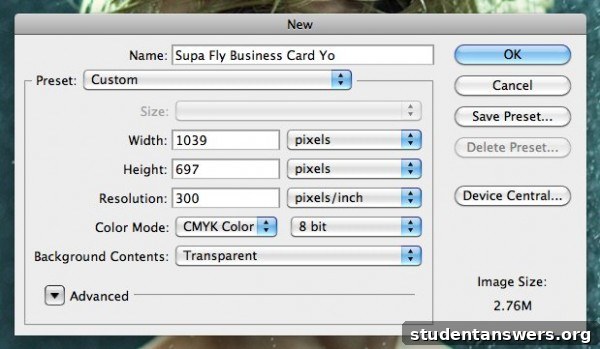
First, open Photoshop and create a new document by pressing CMD+N (or CTRL+N). It is critical to get these initial settings right for a high-quality print result.
- Dimensions: Set the width to 1039 pixels and the height to 697 pixels. This size includes a “bleed area,” which ensures your design extends to the edge of the card after printing and cutting.
- Resolution: Set the resolution to 300 pixels/inch. This is the industry standard for high-quality printing. Web images are often 72 pixels/inch, but that is too low for sharp, clear printed text and graphics.
- Color Mode: Change the color mode to CMYK Color. Screens display colors in RGB (Red, Green, Blue), but professional printers use CMYK (Cyan, Magenta, Yellow, Black). Designing in CMYK from the start ensures the colors on your printed card will match what you see on screen.
- Background Contents: Set this to Transparent.
Step 2: Creating the Background and Main Text Elements
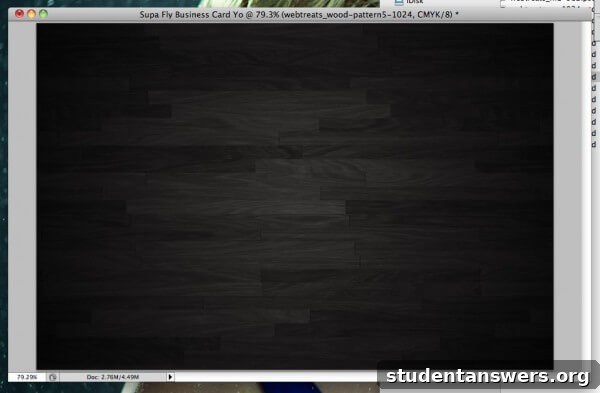
Now we will build the core structure of the card. Find the webtreats_wood-pattern5-1024.psd file you downloaded and drag it onto your Photoshop canvas. Hold the Shift key while resizing it to maintain its proportions. Make it slightly larger than the canvas to ensure full coverage, then press Enter or double-click to place it.
Next, let’s add your name. Create a new layer by pressing CMD+Shift+N. Select the Text Tool (T) and choose the American Captain font at 48 pt size. Type your first name. Then, create a second, separate text layer and type your last name. Using two layers gives you more control over spacing and alignment. Position your first name near the top-center and your last name directly below it.
Now, create another new layer. Select the Rectangle Tool (U) and draw a horizontal strip across the middle of the card. This strip will hold your contact information. Make sure it extends slightly past the edges of the canvas.
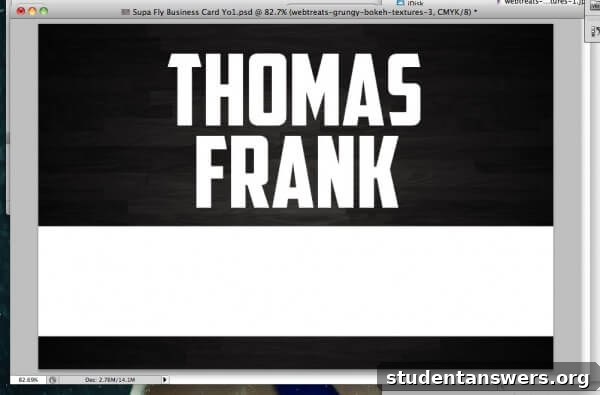
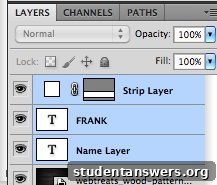
In the Layers panel on the right, hold CMD (or CTRL) and click on the two text layers for your name and the rectangle strip layer you just created. With all three selected, press CMD+E to merge them into a single layer. This will allow us to apply one texture across all three elements simultaneously.
Step 3: Applying Textures and Effects for Depth
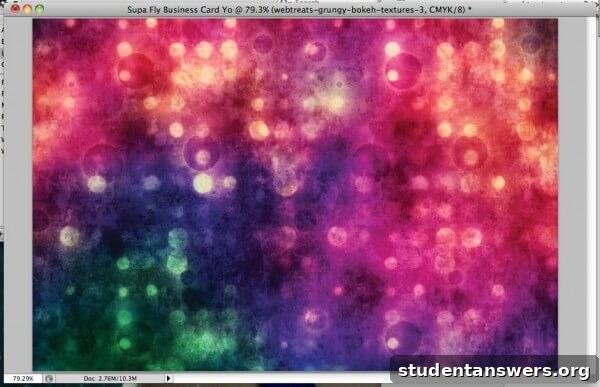
This is where the design comes to life. Create a new layer (CMD+Shift+N). Drag the webtreats-grungy-bokeh-textures-3.jpg file onto your canvas, resizing it to cover the entire area.
With the new bokeh texture layer selected, go to the top menu and choose Layer > Create Clipping Mask. This “clips” the bokeh texture to the shape of the layer directly below it—our merged name and strip layer. The texture will now only appear inside the letters and the rectangle.
To make the effect more subtle, change the Blending Mode of the bokeh layer from Normal to Screen in the Layers panel. This will lighten the texture and blend it smoothly.
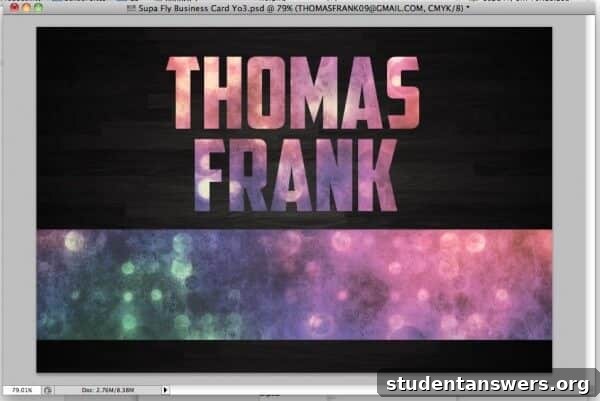
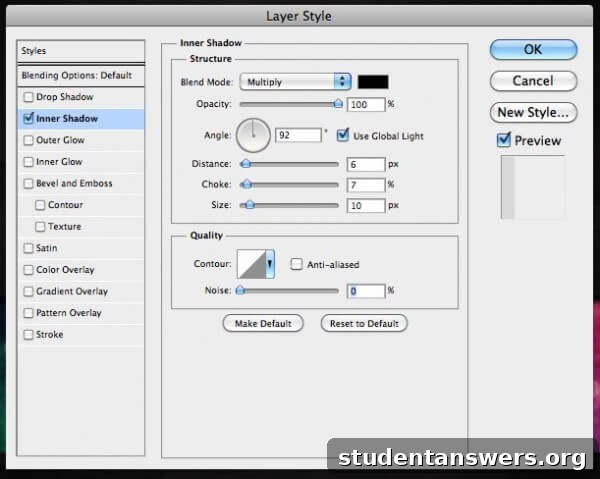
To create a cool “debossed” or engraved look, we’ll add a shadow. Select the merged name/strip layer and go to Layer > Layer Style > Inner Shadow. Apply the following settings:
- Blend Mode: Multiply
- Opacity: 100%
- Angle: 92 degrees
- Distance: 6px
- Choke: 7%
- Size: 10px
Click OK. This effect adds depth, making the text and strip look as if they are carved into the wood background.
Step 4: Adding Your Contact Information
Now it’s time to add your essential details. Using the Text Tool (T), create new text boxes inside the strip for your phone number, email address, website URL, and LinkedIn profile. Use a smaller font size for these details to ensure they fit neatly. Arrange them for a balanced and clean look.
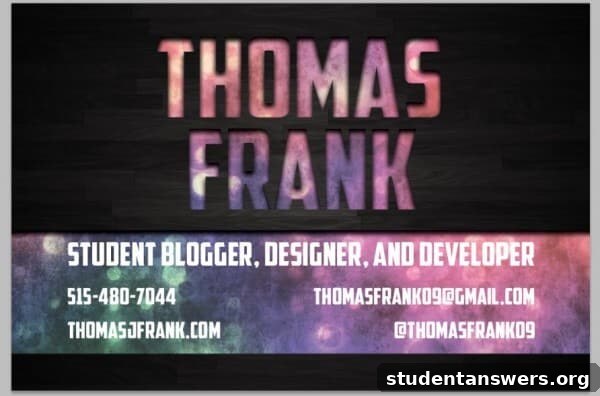
Once you’ve added all your contact information, select all of these new text layers in the Layers panel and merge them (CMD+E). To make this text pop and ensure it’s readable against the textured background, let’s add a gentle shadow. Go to Layer > Layer Style > Drop Shadow and use these settings:
- Blend Mode: Multiply
- Opacity: 100%
- Angle: 92 degrees
- Distance: 6px
- Spread: 15%
- Size: 8px
Click OK. Your design is now complete! Save the file as a Photoshop .PSD to keep an editable copy, and then save it again as a high-quality .JPG for printing.
From Digital Design to Physical Card: Ordering Your Prints
With your design finished, the final step is to get it printed. For high-quality, affordable printing with professional options, we recommend a service like Moo. They offer excellent paper stocks and finishing options that can make your card stand out even more.
On their business card page, choose the option to upload your own full design. As you proceed, you will have a few choices to make:
- Orientation: Select a horizontal orientation to match our design.
- Paper Stock: Consider a thicker paper stock for a more premium feel.
- Corners: I highly recommend selecting rounded corners. It’s a subtle detail that adds a modern and professional touch, helping your card stand apart from the standard sharp-cornered cards.
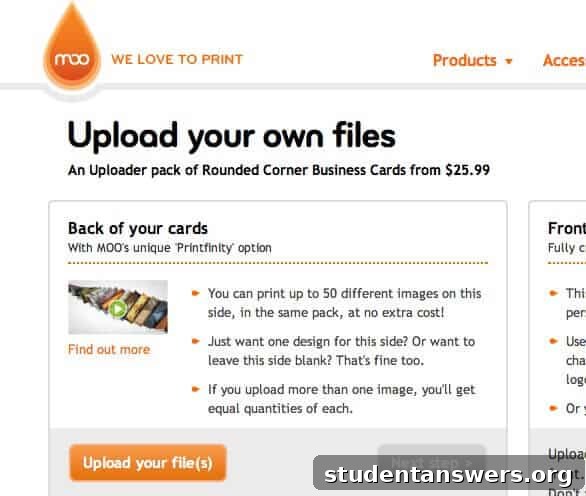
After uploading your JPG file, the site will show you a digital proof. Review it carefully to make sure everything is aligned correctly and there are no typos. Don’t forget to design or select a simple back for your card. Since all your information is on the front, you can leave the back blank, add your logo, or even a QR code to your portfolio.
That’s it! You’ve successfully designed and ordered a fully custom, professional business card that will help you make a fantastic impression at your next networking opportunity.