

Google Calendar Takes On Tungle with New Appointment Feature
The Ultimate Guide to Google Calendar Appointment Scheduling & Top Alternatives
Tired of the endless email chains trying to find a meeting time that works for everyone? “Does Tuesday at 2 PM work?” “Sorry, I’m booked. How about Wednesday morning?” This back-and-forth is a major productivity killer. Fortunately, the world of digital scheduling has evolved dramatically, and one of the most powerful tools is likely already at your fingertips: Google Calendar.
While third-party scheduling apps have dominated the market for years, Google has quietly built a robust scheduling feature directly into its calendar. This integrated solution offers a streamlined way to share your availability and let others book time with you effortlessly. But is it powerful enough to replace dedicated tools like Calendly or Doodle?
This comprehensive guide will explore everything you need to know about Google Calendar’s appointment scheduling features. We’ll provide a step-by-step tutorial on how to use it, weigh its pros and cons, and compare it to the top dedicated scheduling platforms on the market. By the end, you’ll know exactly which tool is the perfect fit for your scheduling needs.
The Evolution of Scheduling: From Tungle to Integrated Solutions
Not long ago, the scheduling landscape was dotted with innovative third-party apps trying to solve the meeting puzzle. One of the early pioneers was Tungle.me, a service that cleverly synced with your calendars and provided a public link for others to request meetings in your free time. It was a revolutionary concept, but Tungle was eventually acquired and shut down, leaving a void in the market.
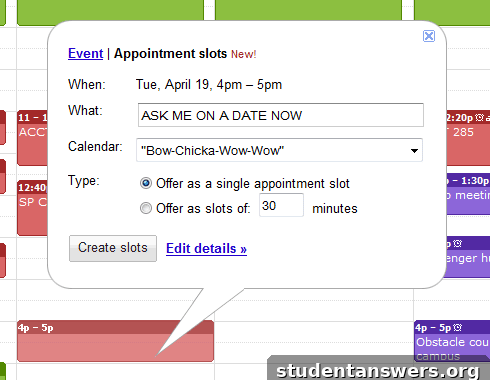
Seeing the clear demand, Google stepped in and integrated a similar feature, initially called “Appointment Slots.” This feature was a game-changer, bringing scheduling functionality directly into the ecosystem where millions already managed their time. Over the years, Google has refined this offering, which has now evolved into the more sophisticated “Appointment Schedules.” This evolution signals a clear trend: scheduling is no longer a niche, add-on service but a core component of modern digital collaboration.
How to Use Google Calendar Appointment Schedules: A Step-by-Step Guide
Setting up a shareable booking page in Google Calendar is surprisingly simple. This feature allows you to define blocks of time when you’re available, and anyone with the link can pick a slot that works for them. The event is then automatically added to both of your calendars. Here’s how to get it done:
- Open Google Calendar: Navigate to your Google Calendar on a desktop browser. The feature is best configured on a computer rather than a mobile device.
- Click “Create”: In the top-left corner, click the “+ Create” button. From the dropdown menu, select “Appointment schedule.”
- Set Up Your Schedule: A new panel will appear on the left. This is where you’ll configure your booking page.
- Add a title: Give your schedule a clear name, like “30-Minute Consultation Call” or “Student Office Hours.”
- Set appointment duration: Choose how long each meeting will be, from 15 minutes to several hours.
- Define Your Availability: This is the most crucial step.
- General availability: Set your recurring available times. For example, you can set your availability to be every Monday and Wednesday from 1 PM to 4 PM. You can add multiple time blocks for any day.
- Date-specific changes: You can click on a specific date in the main calendar view to add or remove availability for that day only, which is perfect for holidays or special events.
- Customize Scheduling Settings: Click “Next” to access more advanced options.
- Scheduling window: Control how far in advance or how close to the meeting time someone can book an appointment. For example, you can prevent same-day bookings by requiring 24 hours’ notice.
- Buffer time: Add time gaps between appointments to give yourself a break or prepare for the next meeting. A 15-minute buffer can prevent back-to-back scheduling stress.
- Maximum bookings per day: Limit the number of appointments you take in a single day to manage your energy and workload.
- Configure Your Booking Form: This section determines what information you collect from people when they book.
- By default, it includes First Name, Last Name, and Email Address.
- You can add custom items, such as asking for a phone number or posing a question like, “What would you like to discuss?”
- Share Your Booking Page: Once you save your schedule, Google Calendar generates a unique booking page. Click the “Share” button to get the link. You can share this link directly via email, add it to your email signature, or embed it on your website.
When someone clicks your link, they’ll see your available times in their own time zone, select a slot, and fill out the form. It’s a seamless experience that eliminates all the usual back-and-forth.
Google Calendar Scheduling: The Pros and Cons
While incredibly convenient, Google’s native scheduler isn’t for everyone. Understanding its strengths and weaknesses is key to deciding if it’s right for you.
The Advantages (Pros)
- Completely Free: The appointment schedule feature is included with any standard Google account. You get powerful functionality without paying for another subscription service.
- Perfect Integration: It lives inside your calendar. New appointments automatically appear and, most importantly, the scheduler automatically blocks off times where you already have existing events, preventing any double bookings.
- Simplicity and Ease of Use: The interface is clean, intuitive, and straightforward. There’s no steep learning curve, making it ideal for individuals who need a simple solution without overwhelming features.
- Automatic Google Meet Link: You can set your schedule to automatically generate and add a Google Meet video conferencing link to every booked appointment, streamlining virtual meetings.
The Limitations (Cons)
- Limited Customization: You cannot add your own branding, logos, or custom colors to your booking page. The look and feel are standard Google, which may not be suitable for businesses wanting a branded client experience.
- No Payment Integrations: If you’re a consultant, coach, or professional who charges for appointments, you cannot collect payments through Google’s scheduling feature. You would need a separate process for invoicing and payment.
- Basic Team Features: While you can add co-hosts to an appointment, it lacks advanced team functionality like round-robin scheduling (automatically assigning a new meeting to the next available team member) or collective scheduling (finding a time when multiple team members are free).
- Google Ecosystem Focus: The experience is smoothest for users within the Google ecosystem. While anyone with the link can book, the process is slightly more streamlined for fellow Google Calendar users.

Top Alternatives: When You Need More Power
If the limitations of Google Calendar’s scheduler are deal-breakers for you, a dedicated scheduling platform is your best bet. These tools are built specifically for robust appointment management and offer features that cater to professionals and businesses.
1. Calendly
Best For: Professionals, sales teams, and users needing powerful integrations.
Calendly is arguably the most popular dedicated scheduling tool, and for good reason. It offers a polished user experience, deep customization, and powerful workflow automation. With Calendly, you can create different event types, set up automated email reminders, and integrate directly with tools like Salesforce, HubSpot, and Stripe for payments.
2. Doodle
Best For: Scheduling meetings with large groups.
Doodle’s core strength has always been group scheduling. Its “polling” feature allows you to propose several times and have participants vote on the ones that work for them, making it easy to find the best time for a group. While it also offers 1-on-1 booking pages similar to Calendly, its group polling feature remains its unique selling point.
3. Acuity Scheduling (from Squarespace)
Best For: Service-based businesses that charge for their time.
Acuity is a scheduling powerhouse designed for businesses. It goes beyond simple time-slot booking by including client management, customizable intake forms, and robust payment processing (including deposits, packages, and subscriptions). If you’re a coach, consultant, therapist, or run a salon, Acuity is built for you.
Which Scheduling Tool Should You Choose?
The right choice depends entirely on your specific needs. Here’s a simple breakdown to help you decide:
Choose Google Calendar Appointment Schedules if:
- You want a free, simple, and effective way to let people book time with you.
- Your scheduling needs are straightforward (e.g., student office hours, internal team meetings, quick chats).
- You live and work primarily within the Google ecosystem.
- You don’t need to process payments or have advanced team features.
Choose a Dedicated Tool like Calendly or Acuity if:
- You need to project a professional, branded image to clients.
- You charge for your appointments and need seamless payment integration.
- You require advanced features like automated workflows, detailed analytics, or CRM integrations.
- You need to manage the schedules of an entire team with features like round-robin or collective availability.
Conclusion: The Right Tool for the Right Job
The days of frustrating email tag for scheduling are over. Google Calendar’s built-in Appointment Schedules feature is a powerful, free, and incredibly convenient tool that will meet the needs of a vast majority of users. Its seamless integration and simplicity make it the perfect starting point for anyone looking to streamline their scheduling process.
However, for professionals and businesses with more complex requirements—such as payment processing, branding, and team management—investing in a dedicated platform like Calendly or Acuity is a wise choice. These tools offer a level of polish and functionality that can significantly enhance a professional service offering.
What’s your go-to method for scheduling meetings? Have you tried Google’s appointment schedules, or do you rely on another tool? Share your experiences and preferences in the comments below!