

Are you a Windows user looking to supercharge your daily routine? While macOS is often praised for its suite of built-in productivity apps, the Windows ecosystem is brimming with powerful, third-party tools that can dramatically enhance your workflow. You just need to know where to find them. Forget the idea that you’re at a disadvantage; with the right software, you can build a more efficient, streamlined, and enjoyable computing experience.
We’ve done the deep dive for you, testing and curating a definitive list of the best Windows productivity apps available today. This guide will walk you through ten exceptional tools designed to solve common frustrations, from sluggish file searches to clunky screenshot utilities. Whether you’re a student, a creative professional, or anyone looking to get more done, there’s an app here that will change the way you work. Best of all, every single application on this list is completely free to use.
ShareX: The Ultimate Screenshot and Screen Capture Tool
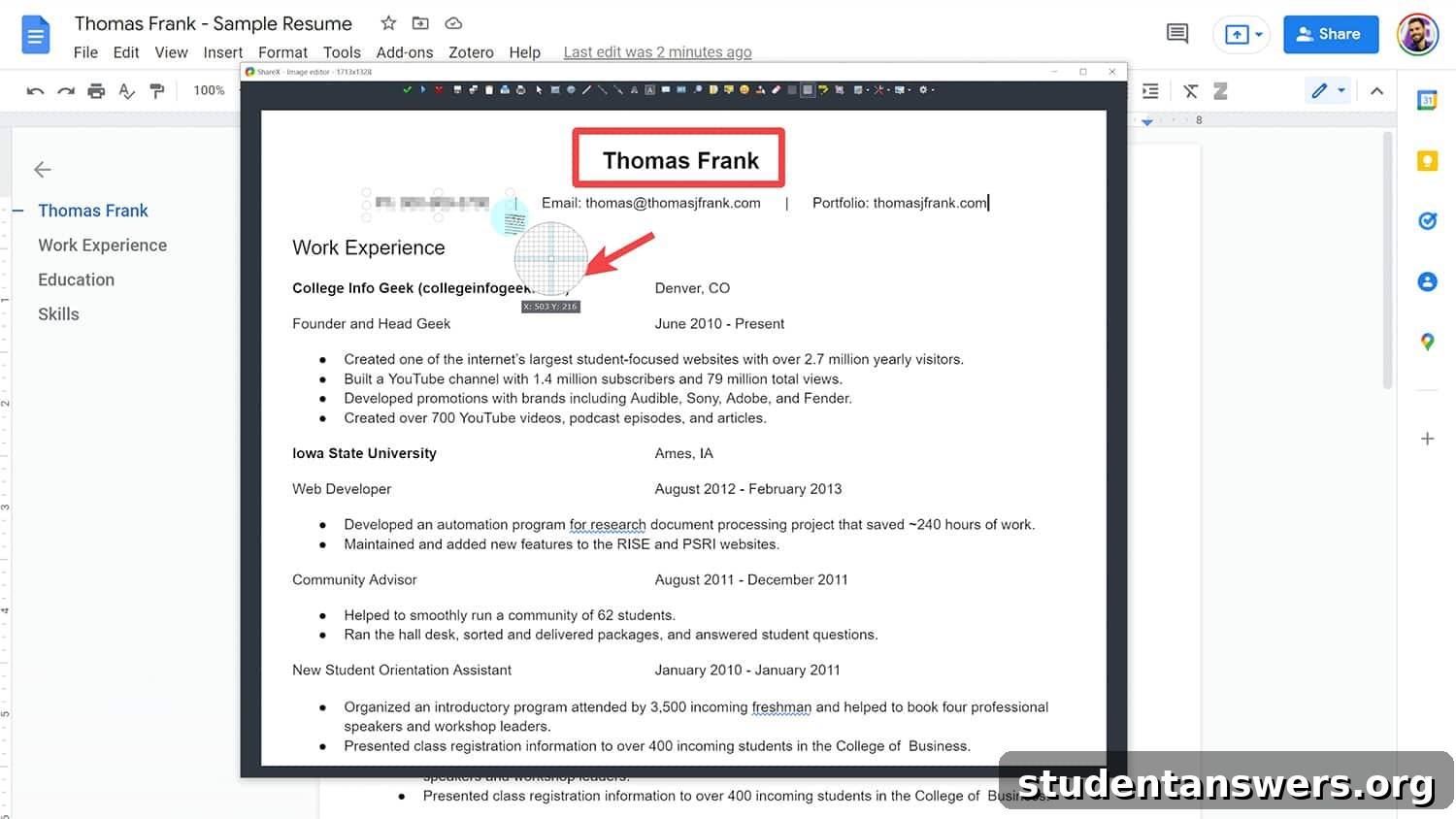
The built-in Windows screenshot utility, Snip & Sketch, is adequate for occasional captures. However, for anyone who regularly takes screenshots for work or school, its limitations quickly become apparent. The editing and annotation features are basic, and the workflow can feel cumbersome. This is where ShareX steps in as a game-changing alternative. It’s a free, open-source powerhouse that transforms screen capturing from a chore into an efficient, customizable process.
With ShareX, you can capture any part of your screen with incredible flexibility—full screen, a specific window, a custom region, or even a scrolling capture for long web pages. But its true power lies in its post-capture workflow. The integrated editor is packed with features, allowing you to crop, add text, draw arrows, highlight sections, and even blur or pixelate sensitive information. One of its standout features is Optical Character Recognition (OCR), which lets you instantly extract text from any image or screenshot. Imagine grabbing text from a non-selectable PDF or a presentation slide with a single click. To maximize your efficiency, configure custom hotkeys for your most common actions, such as copying to the clipboard, opening the editor, or running OCR.
QuickLook: Instant File Previews Without the Wait
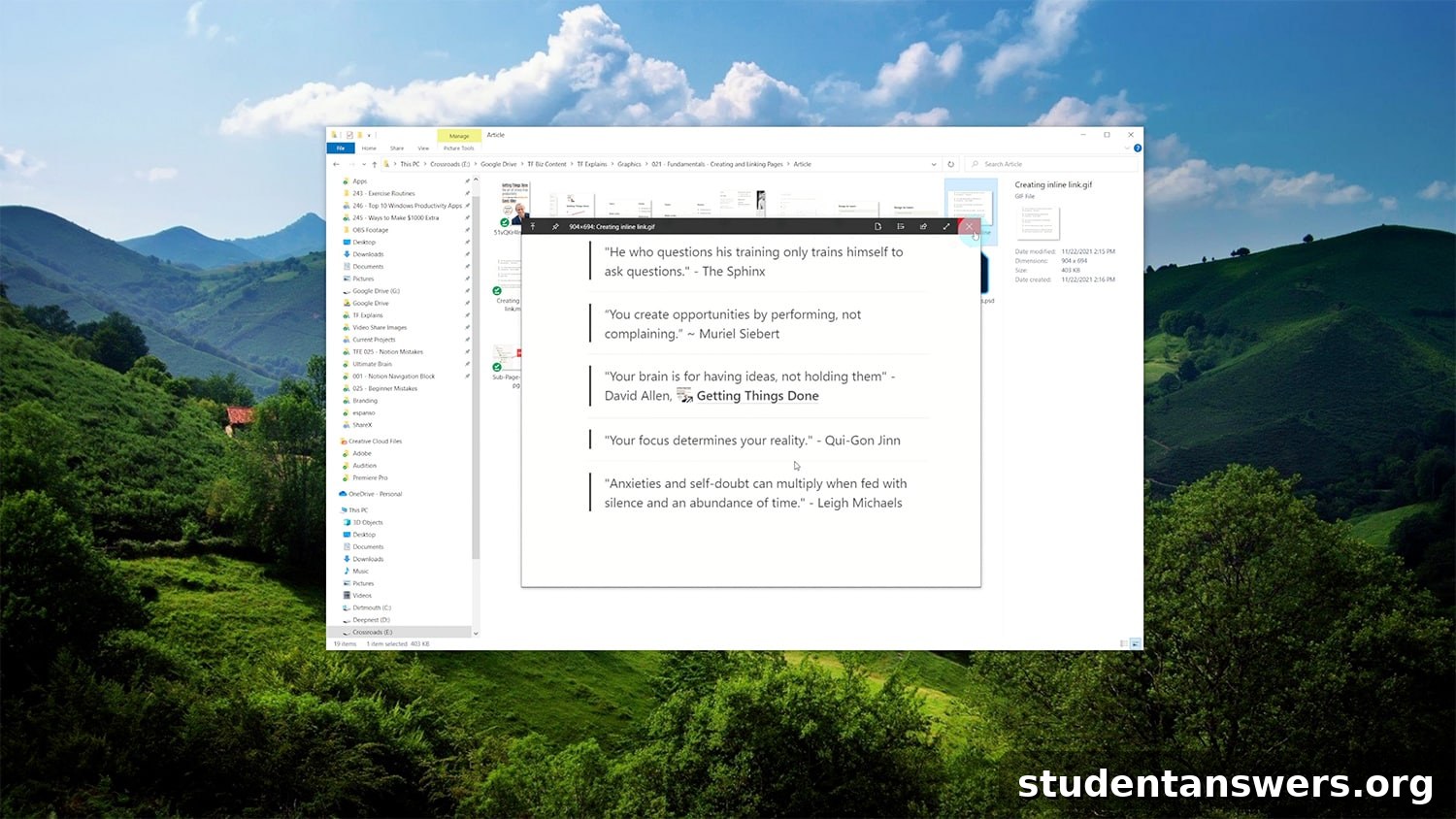
macOS users have long enjoyed the convenience of Quick Look, a feature that allows them to preview a file’s contents by simply pressing the spacebar. This is a massive timesaver, especially for large files like high-resolution images, videos, or complex design documents that would otherwise take precious seconds (or minutes) to open in their native applications. While Windows has a preview pane, it’s slower and less versatile. Thankfully, a free app called QuickLook brings this seamless functionality to the Windows File Explorer.
Once installed from the Microsoft Store, QuickLook works exactly as you’d expect. Just select any file—an image, a PDF, a video, a ZIP archive, or even a text document—and press the spacebar. A clean, large preview window instantly appears. This simple utility will fundamentally change how you navigate your files. No more waiting for Photoshop to load just to check which PSD file is the right one. No more opening a video player to identify a clip. For anyone who works with a diverse range of file types, QuickLook is an indispensable tool that will save you a cumulative total of hours in the long run.
Notion: Your All-in-One Digital Workspace
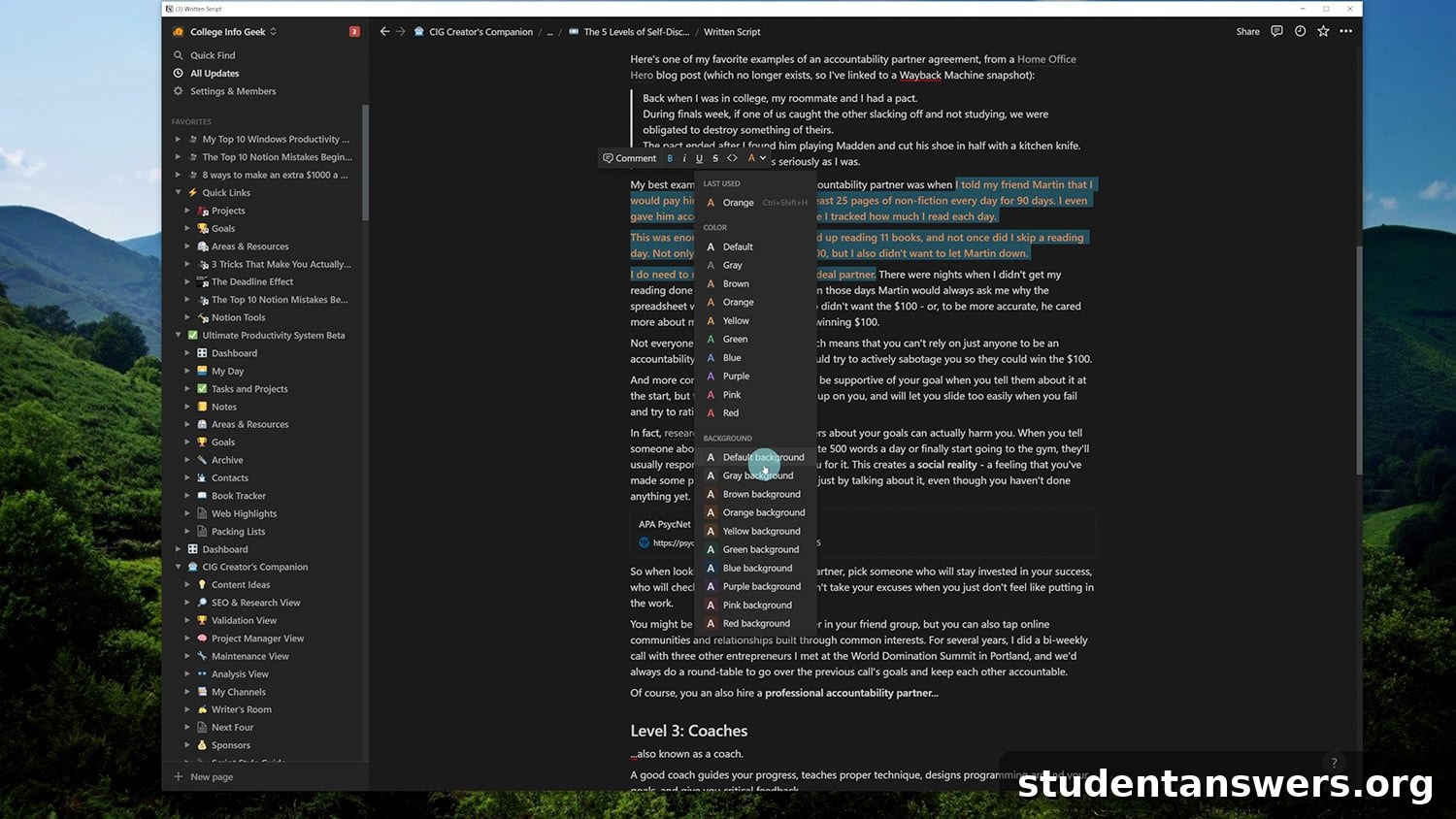
No list of modern productivity apps would be complete without mentioning Notion. It’s far more than just a note-taking app; it’s a unified, all-in-one workspace that can adapt to nearly any organizational need. At its core, Notion combines the functionalities of a word processor, a task manager, a spreadsheet, and a database into a single, flexible platform. For Windows users seeking a powerful replacement for disparate apps like OneNote, To Do, and Excel for personal organization, Notion is the answer.
The magic of Notion lies in its block-based editor. Every piece of content, from a paragraph of text to an image or a to-do list, is a “block” that you can move and transform. This allows you to build custom pages and systems that fit your specific needs. You can create nested pages for deep organization, perfect for implementing systems like Tiago Forte’s PARA method. Its powerful database features allow you to create task lists, project trackers, or content calendars with different views like tables, Kanban boards, and calendars. Whether you need a simple place to jot down ideas or a comprehensive “second brain” to manage your entire life, Notion’s free personal plan offers more than enough power to get started.
Microsoft Edge: A Faster, More Efficient Web Browser
If you’re still associating Microsoft’s browser with the sluggish days of Internet Explorer, it’s time to take a fresh look. The modern Microsoft Edge is a completely different beast. Built on the same open-source Chromium engine as Google Chrome, Edge delivers a fast, reliable, and feature-rich browsing experience that, in many ways, surpasses its main competitor. For Windows users currently on Chrome, switching to Edge can bring significant performance benefits.
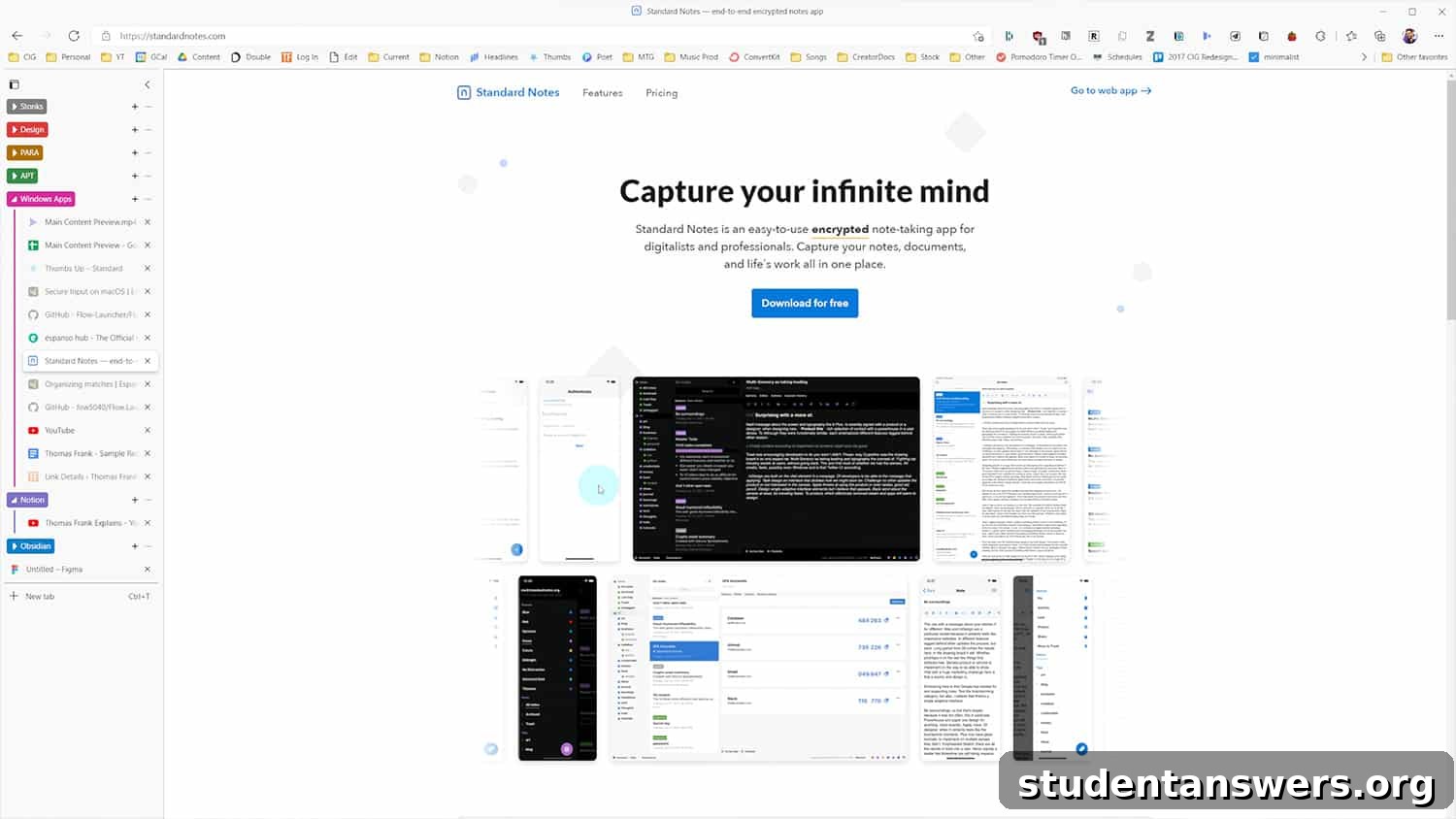
Because it’s based on Chromium, you can install all your favorite extensions directly from the Chrome Web Store, ensuring a seamless transition. Where Edge pulls ahead is in its resource management. It’s generally lighter on RAM and CPU usage, and its “sleeping tabs” feature automatically frees up system resources from inactive tabs, which is a lifesaver for those who keep dozens of tabs open. Furthermore, Edge boasts unique productivity features that Chrome lacks natively. The most notable is Vertical Tabs, which moves your tabs to a scrollable list on the side of the screen, making it infinitely easier to navigate and identify pages. With other built-in tools like Collections for organizing web research and an excellent PDF reader, Edge is a compelling choice for the most productive browsing on Windows.
Windows Clipboard History: A Hidden Productivity Gem
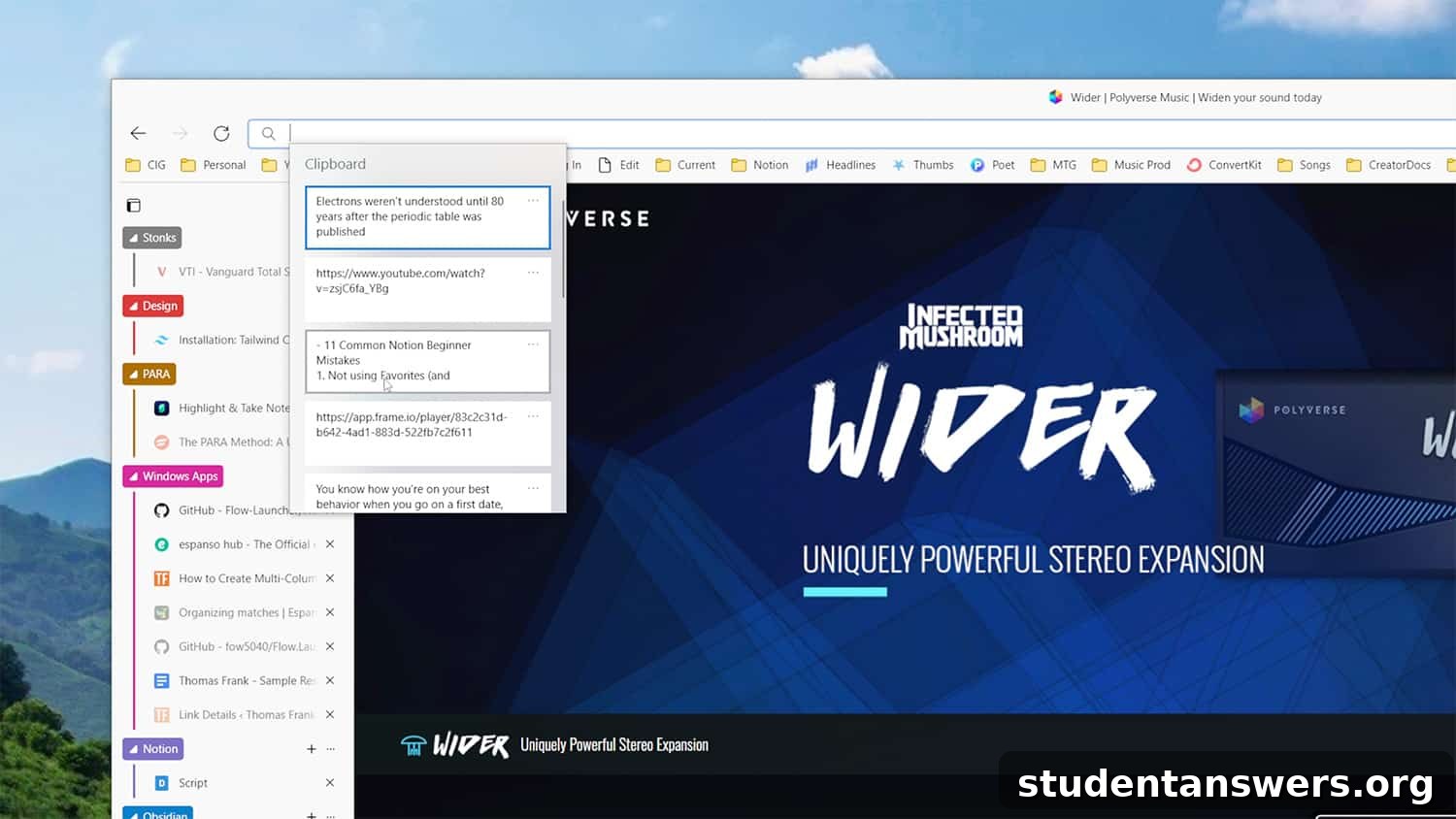
The humble clipboard is one of the most used features in any operating system, yet its traditional limitation—holding only one item at a time—is a constant source of frustration. How many times have you copied something important, only to accidentally overwrite it by copying something else before you could paste it? Fortunately, Windows has a powerful built-in solution that many users don’t even know exists: Clipboard History.
By simply pressing Windows Key + V for the first time, you can enable this feature. From that point on, instead of storing just your last copied item, Windows will keep a running list of the last 25 text snippets and images you’ve copied. Pressing Win + V again will bring up a small window showing this history, allowing you to select and paste any of the recent items. You can even pin frequently used items, like your email address or a common reply, to the top of the list for quick access. While Windows offers an option to sync your clipboard across devices, we advise using this with caution. For security purposes, especially if you copy passwords or sensitive data, it’s often best to keep your clipboard history local to your machine.
Flow Launcher: The Keyboard-Driven Command Center
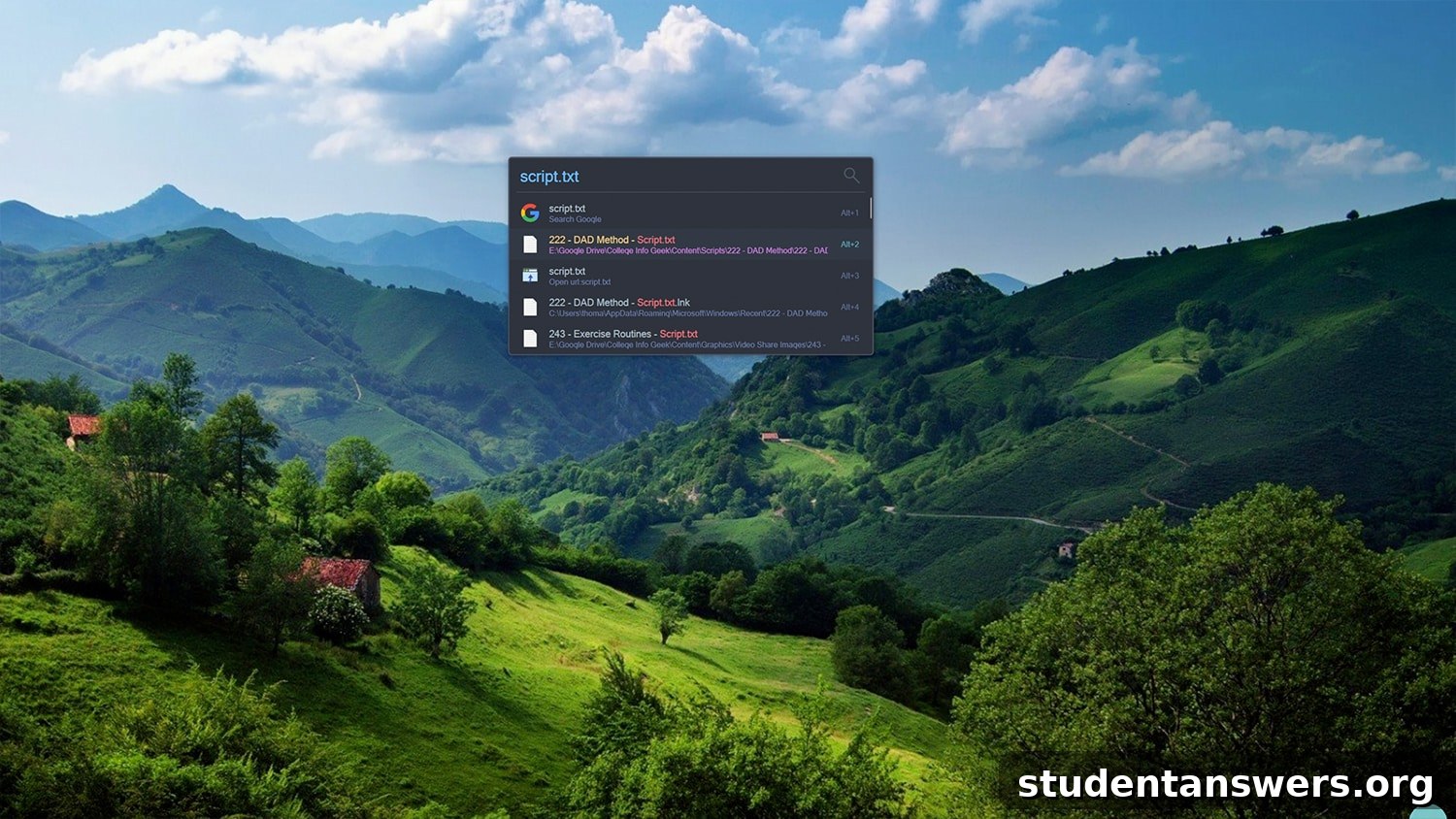
If you value speed and efficiency, reducing your reliance on the mouse is key. Flow Launcher is a free, lightning-fast application launcher that acts as a central command hub for your PC. Inspired by tools like Alfred on macOS, it allows you to find files, launch applications, search the web, and perform a variety of actions using only your keyboard. By default, a simple press of Alt + Spacebar brings up a clean search bar, ready for your command.
Flow Launcher is significantly faster and more accurate than the default Windows Start menu search. You can instantly search for and open any application or file on your system. But its capabilities extend much further through a rich plugin ecosystem. You can perform Google searches directly (e.g., `g your search query`), do quick calculations, control Spotify playback, or even look up system commands. It’s a tool that grows with you; as you become more familiar with its power, you’ll find yourself navigating your entire computer without ever needing to click through menus or folders, saving countless clicks and seconds with every action.
Espanso: Automate Your Typing with a Text Expander

Think about the text you type repeatedly every single day: your email address, common phrases in messages, code snippets, company names, or complex URLs. All of this repetitive typing is a prime candidate for automation. Espanso is a free, open-source text expander that lets you create short “triggers” that automatically expand into longer strings of text. For example, you could configure it so that typing `:email` instantly transforms into `[email protected]`.
What makes Espanso particularly powerful is its simplicity and cross-platform nature. It works system-wide in any application, from your email client to your code editor. As you build your library of text snippets, Espanso’s built-in search bar makes it easy to find the one you need without having to memorize every trigger. This is a significant advantage over other tools like AutoHotkey, which can be more complex to configure for simple text expansion. You can even use Espanso in tandem with Flow Launcher to create powerful workflows, such as crafting a snippet that types out a complex file path, allowing you to navigate directly to a specific folder with just a few keystrokes.
Everything: Instant File Search for Windows
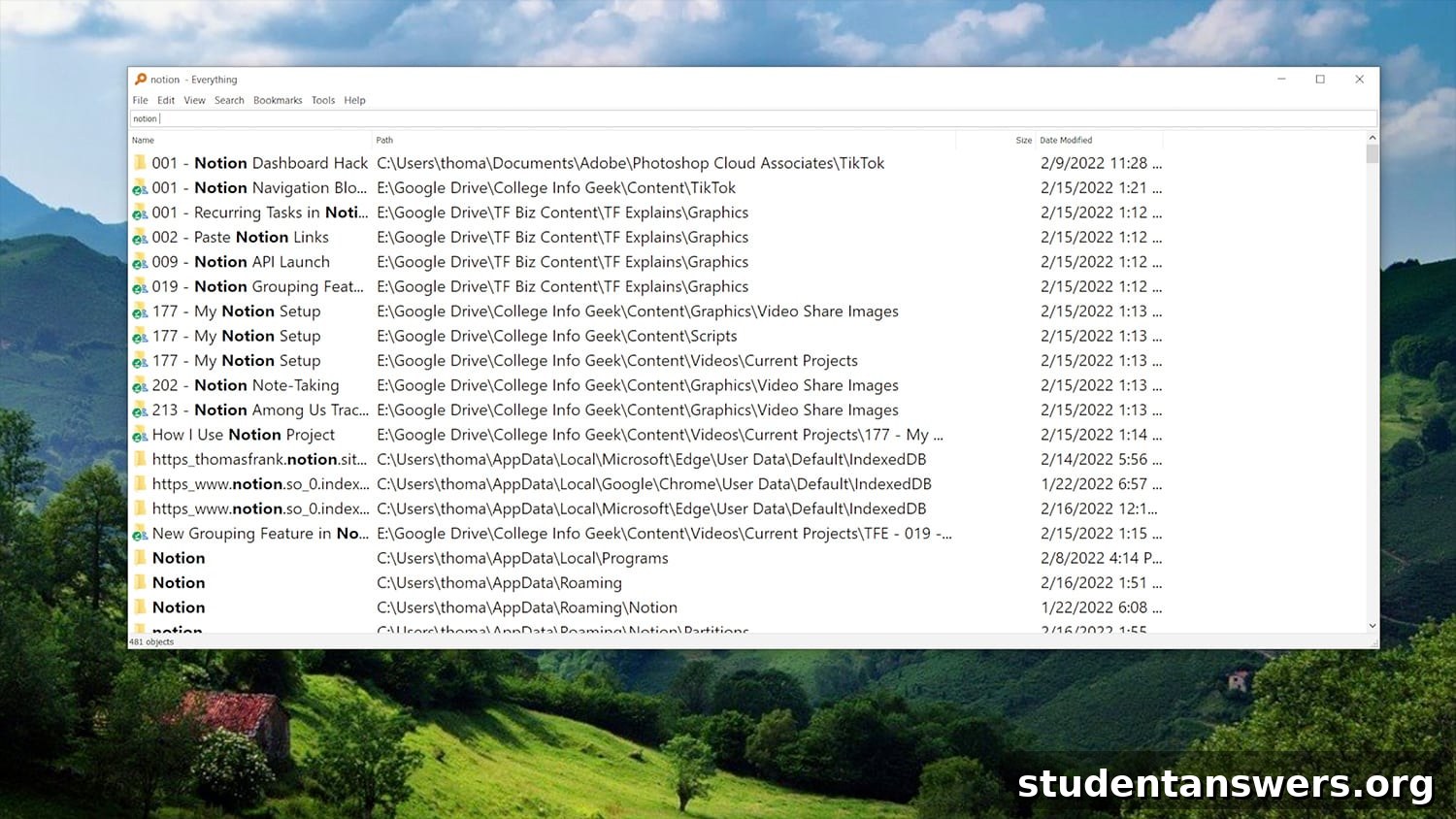
The default Windows search can often be painfully slow, leaving you waiting as it chugs through your files. If you’ve ever been frustrated by this delay, then Everything is the solution you need. This free utility lives up to its name with a singular, brilliant purpose: to find any file or folder on your computer almost instantaneously. It’s a testament to how a simple, well-executed tool can be one of the most impactful additions to your productivity arsenal.
Unlike the standard Windows search, which indexes file contents and can be resource-heavy, Everything works by creating a lightweight index of just the filenames on your NTFS drives. This process is incredibly fast and uses very little memory. The result is a search experience that feels like magic. As you type into the search bar, results appear in real-time. There is no delay. If you need to find a specific document, image, or program but can only remember part of its name, Everything will locate it in a fraction of a second, saving you from the tedious task of manually clicking through folder hierarchies.
Google Drive: Seamless Cloud Storage and Backup
In the modern computing landscape, a robust cloud storage solution is not just a convenience—it’s essential. Having your files backed up to the cloud protects you from data loss due to hardware failure and allows you to access them from any device, anywhere. While there are many options available, Google Drive remains our top recommendation for most users, primarily because of its generous free offering of 15 GB of storage. This is significantly more than the 5 GB offered by Microsoft’s OneDrive or the 2 GB from Dropbox’s free plan.
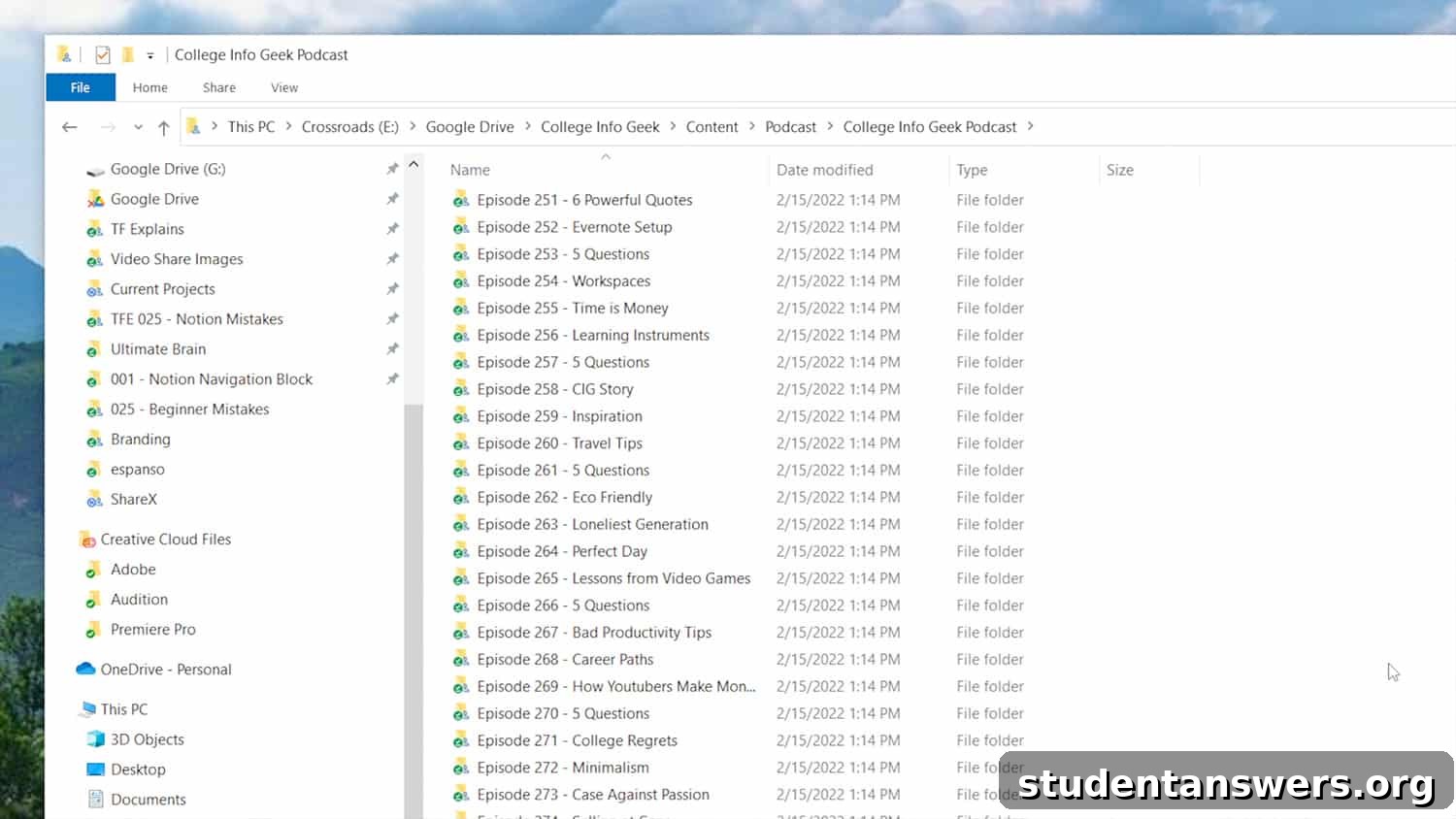
To truly maximize its utility, we suggest integrating Google Drive deeply into your file system. Install the desktop client and, instead of using the default Windows folders (Documents, Pictures, etc.), treat your Google Drive folder as the “root” for all your important files. Create your organizational structure within it. By adopting this method, every file you save is automatically synced to the cloud and made available on your other devices. This “set it and forget it” approach ensures your data is always safe and accessible without any extra effort.
f.lux: Protect Your Eyes and Your Sleep
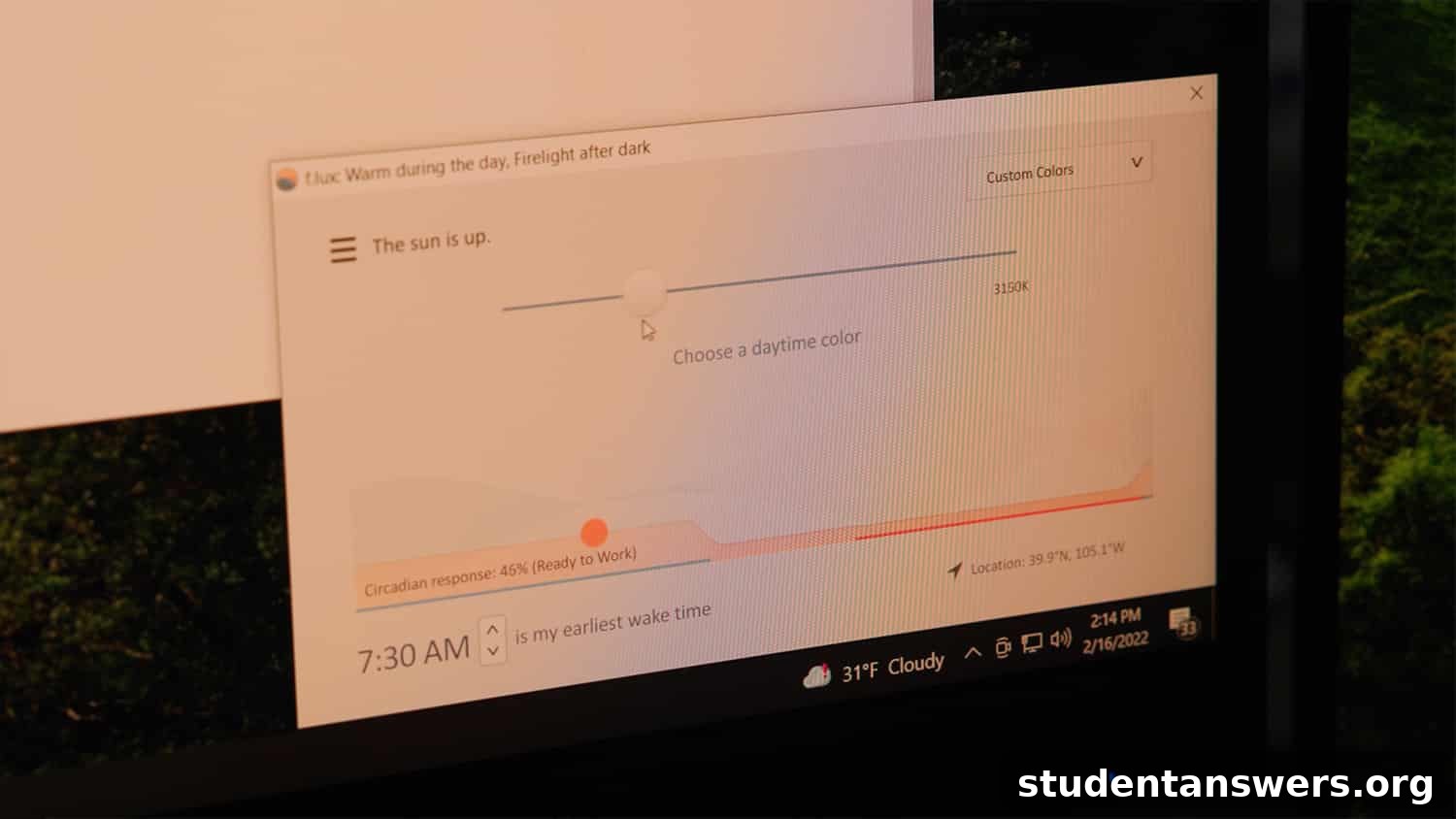
Working late into the night is a common reality for many, but the bright blue light emitted from our computer screens can disrupt our natural sleep cycles. This blue light can suppress the production of melatonin, the hormone that tells our body it’s time to sleep. f.lux is a simple yet brilliant utility designed to mitigate this effect. It’s a digital wellness tool that automatically adjusts the color temperature of your display based on the time of day.
After a simple setup where you tell the app your location, f.lux runs quietly in the background. During the day, your screen will look normal. As the sun sets, it will gradually and subtly warm the colors of your screen, reducing the amount of blue light and giving it a softer, amber tint. While the change can be a little jarring at first, most users find that their eyes adjust within a few days. Soon, looking at a full-brightness blue screen at night will feel harsh and unpleasant. By creating a more eye-friendly viewing experience in the evening, f.lux can help reduce eye strain and potentially improve the quality of your sleep.
Transform Your Windows Workflow Today
As this list demonstrates, you don’t need to spend a fortune—or anything at all—to create a highly productive and personalized environment on Windows. By thoughtfully selecting a few key applications that address your specific pain points, you can automate repetitive tasks, speed up common processes, and build a more organized digital life. Stop fighting with clunky default tools and start working smarter. Pick one or two apps from this guide that resonate with your needs, install them, and see the difference they can make. You’ll be amazed at how much time and frustration you can save in the long run.