

Craft a Seamless Dual Screen Masterpiece
Master Your Dual Monitor Setup: The Ultimate Guide to Perfect Wallpapers
Upgrading to a dual monitor setup is a transformative experience for anyone who spends significant time on a computer. Whether you’re a professional juggling multiple applications, a creative artist needing more digital canvas space, or a gamer seeking an immersive edge, the benefits are undeniable. Spreading your work across two screens boosts productivity and fundamentally changes your workflow for the better. However, this powerful upgrade introduces a common, yet frustrating, aesthetic challenge: finding the perfect wallpaper.
Many users quickly discover that their wallpaper options become surprisingly limited. Stretching a single, standard wallpaper across two screens often results in a distorted, pixelated mess, with the central focus of the image awkwardly split by the monitor bezels. Using the same static image on both screens can feel repetitive and uninspired. While dedicated dual-monitor wallpapers exist, the selection is often sparse, and finding one that perfectly matches your taste and resolution can be a daunting task. Fortunately, there’s an elegant, simple, and visually stunning solution that you can apply to almost any high-quality image: creating a symmetrical, mirrored desktop background.
Why a Symmetrical Dual Monitor Wallpaper Works So Well
The concept is straightforward: you take one fantastic wallpaper, apply it to your primary monitor, and then use a horizontally flipped version of the same wallpaper on your secondary monitor. This technique instantly solves the “boring and repetitive” problem. Instead of two identical, disconnected screens, you create a single, cohesive, and symmetrical digital space. This approach has several key advantages:
- Creates Visual Harmony: The mirrored effect produces a natural sense of balance and order on your desktop, making it feel more intentional and professionally designed.
- Endless Customization: You are no longer limited to a small pool of “dual-screen” wallpapers. You can adapt virtually any abstract, landscape, or pattern-based wallpaper to your setup.
- Eliminates the Bezel Gap Problem: Instead of fighting against the physical gap between your monitors, the symmetrical design makes the gap a natural line of symmetry, working with it rather than against it.
- A Unique and Personal Look: This method ensures your desktop stands out. It’s a simple trick that has a major impact on the overall look and feel of your workspace.
To achieve this effect on a Windows PC, you’ll need a little help from a lightweight utility. While macOS users can manage different wallpapers on each monitor natively through System Settings, Windows requires a third-party tool for this level of control. The best tool for the job is DisplayFusion.
Introducing DisplayFusion: Your Multi-Monitor Superpower
DisplayFusion is a powerful software suite designed to make managing multiple monitors a breeze. It’s packed with features, from spanning your taskbar across screens to creating complex window management rules. For our purpose, however, we only need its excellent wallpaper management capabilities, which are available in the completely free version.
DisplayFusion Free is lightweight, running quietly in your system tray and consuming minimal system resources (typically just a few megabytes of RAM). It’s the perfect tool to set and forget. Once installed, it will automatically start with Windows, ready to manage your beautiful new desktop. The Pro version offers more advanced features, but for creating a mirrored wallpaper effect, the free version is all you need.
Step-by-Step Guide to Creating Your Mirrored Masterpiece
Ready to transform your desktop? The process can be broken down into three simple stages: finding the right image, flipping it, and setting it up in DisplayFusion.
Step 1: Choose the Perfect Wallpaper
The success of this technique hinges on selecting the right kind of image. While you can experiment with anything, certain types of wallpapers work exceptionally well when mirrored:
- Abstract and Geometric Designs: Swirls of color, complex patterns, and digital art often look incredible when mirrored, creating intricate and mesmerizing new shapes.
- Landscapes and Nature Scenes: Symmetrical landscapes, like a mountain reflected in a lake or a road stretching into the distance, are prime candidates. Sunrises, sunsets, and forest scenes also work beautifully.
- Space and Sci-Fi: Nebulas, galaxies, and futuristic cityscapes create a stunning, expansive feel when mirrored across two screens.
What to avoid: Images with text will result in unreadable, backward writing on one screen. Asymmetrical subjects, such as a person’s face looking to one side, can also look strange when mirrored. The goal is to find an image that looks intentional and balanced when flipped.
Here are some excellent resources for finding high-resolution, quality wallpapers:
- Unsplash and Pexels: Fantastic for stunning, royalty-free photography, especially landscapes and abstract shots.
- DeviantArt: A massive community of digital artists, offering a vast library of unique and creative wallpapers.
- Wallpaper Abyss: A huge, well-organized database of wallpapers covering every conceivable category.
Step 2: Flip the Image Horizontally
Once you’ve downloaded your chosen wallpaper, you need to create the mirrored version. You don’t need expensive software like Photoshop for this. Any basic image editor will do the job. Many free options are available:
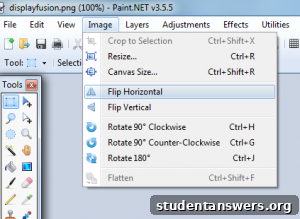
- Paint.NET: A powerful and free image editor for Windows.
- GIMP: A free, open-source alternative to Photoshop with extensive features.
- Microsoft Photos: The built-in photo app in Windows 10 and 11 has a simple flip function.
- Online Editors: Websites like Photopea offer photo editing capabilities directly in your browser.
The process is nearly identical in all of them:
- Open your downloaded wallpaper file in the image editor.
- Look for a menu option, typically labeled “Image” or “Edit.”
- Inside that menu, find an option called “Flip Horizontal,” “Rotate,” or “Transform.”
- Select “Flip Horizontal.” You will see the image instantly mirror itself.
- Now, this is the most important part: save this flipped image as a new file. Go to “File” -> “Save As…” and give it a distinct name, such as “Wallpaper_Flipped.jpg”. Do not overwrite your original file.
You should now have two image files: the original wallpaper and its horizontally flipped counterpart.
Step 3: Configure Your Desktop with DisplayFusion
With your two images ready, it’s time to put them on your desktop using DisplayFusion. After installing and running the program, you’ll see a small monitor-shaped icon in your Windows notification area (the system tray in the bottom-right corner of your taskbar).
- Right-click the DisplayFusion icon in your system tray and select “Desktop Wallpaper” from the menu. This will open the main configuration window.
- You will see a visual representation of your monitor setup, with boxes labeled “1” and “2” (or more if you have them).
- Click on the box representing your primary monitor (usually Monitor 1).
- Below the monitor display, click the “Browse…” button. A file explorer window will open. Navigate to where you saved your wallpapers and select the original, unflipped image.
- Next, click on the box representing your secondary monitor (Monitor 2) in the configuration window.
- Click the “Browse…” button again. This time, select the flipped image file (e.g., “Wallpaper_Flipped.jpg”).
- Once both monitors have their respective images loaded, click the “Apply” or “OK” button at the bottom of the window.
That’s it! Your desktop will instantly update to display your new, perfectly symmetrical, and beautiful wallpaper. Take a moment to appreciate your personalized and harmonious new workspace. It’s a simple change that makes your entire computer setup feel more polished and professional.