

The 7 Best Scanner Apps for Effortless Document Digitization (2024)
Remember the days of clunky, oversized flatbed scanners? The process was a chore: carefully placing a document, waiting for the slow hum of the machine, and then wrestling with desktop software to edit the final image. It was time-consuming and inconvenient.
Fortunately, technology has evolved. Today, the most powerful scanner you need is likely already in your pocket. Modern smartphone apps can handle nearly all your scanning needs, transforming your phone’s camera into a high-quality document digitizer. This approach is not only more affordable than buying dedicated hardware but also infinitely more convenient for on-the-go tasks.
But a quick search on any app store reveals a dizzying array of options. With hundreds of scanner apps available, all claiming to be the best, how do you choose the right one? Their subtle differences in features, pricing, and user experience can be hard to decipher without extensive testing.
To save you the effort, we’ve done the research and compiled this definitive guide to the best scanner apps available today. Whether you need to quickly scan and organize receipts for expense reports, convert a physical document into editable text, or sign and share important contracts, there’s a perfect app on this list for your needs.
Adobe Scan: The Best Overall Free Scanner
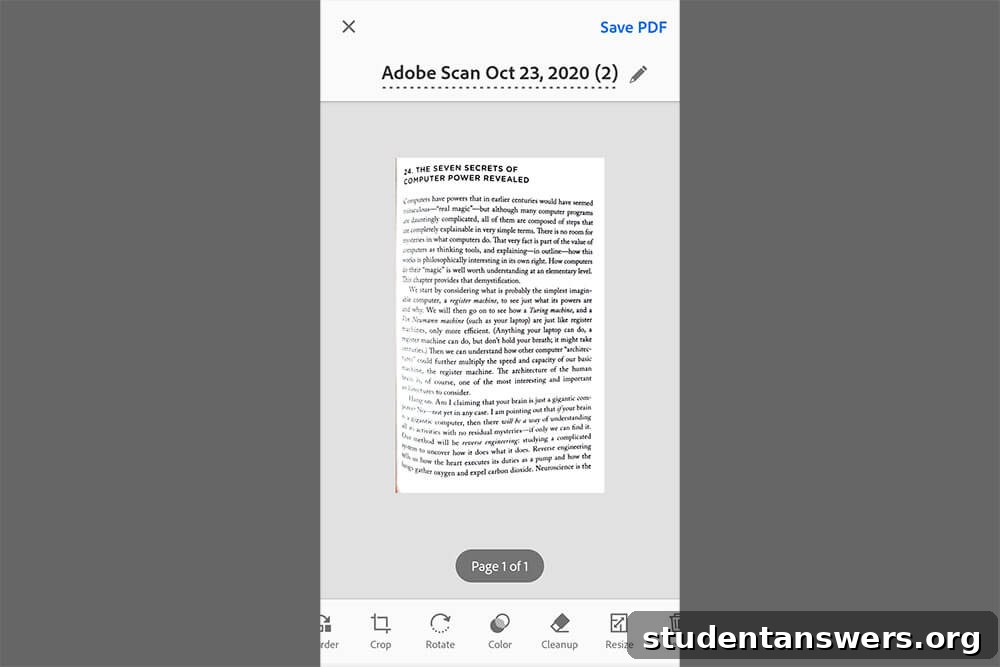
Overview: A powerful, intuitive, and completely free scanner app from the industry leader in document management, Adobe.
When you think of Adobe, high-end creative software usually comes to mind, but the company has distilled its expertise into an exceptional mobile scanner. Adobe Scan stands out for its simplicity and polished user experience. The app’s interface is clean and straightforward, making the scanning process feel effortless.
One of its standout features is the intelligent capture mode. The app offers presets for different types of content, including whiteboards, business cards, documents, and forms. Simply select a mode and point your camera; Adobe Scan automatically detects the borders, focuses the image, and captures the scan without you needing to press a button. Of course, a manual capture option is also available for more precise control.
After capturing an image, the app provides a suite of editing tools. You can crop, rotate, adjust the color and contrast, and clean up any imperfections to ensure a professional-looking result. Scans can be saved as high-quality PDFs or JPEGs. By default, your documents are saved to your free Adobe Document Cloud account, ensuring they are accessible across all your devices. You can also easily share them to other services like Google Drive or save them directly to your phone. The built-in OCR (Optical Character Recognition) is reliable, allowing you to copy text from your scans with impressive accuracy.
The only notable limitation is the absence of built-in annotation or document-signing features. Adobe strategically reserves these functions for its flagship Acrobat Reader app, encouraging users to adopt its broader ecosystem. However, for pure scanning and digitizing, Adobe Scan is hard to beat.
Price: Completely Free
Platforms: Android, iOS
Microsoft Lens: Perfect for Office 365 Users
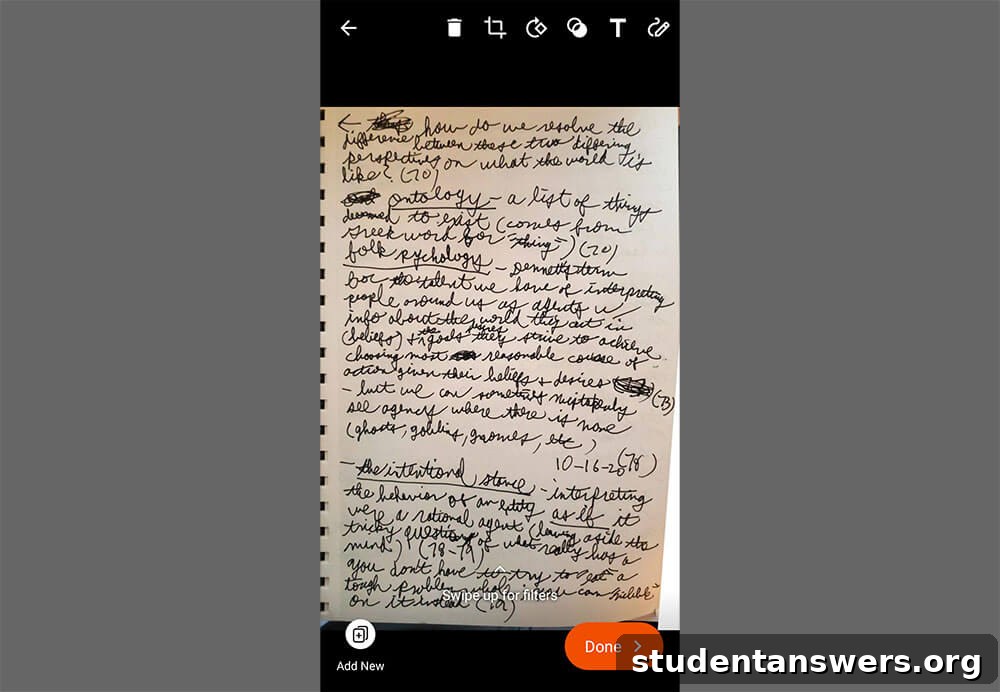
Overview: A versatile scanner app from Microsoft that shines with its deep integration into the Office 365 ecosystem.
Given Microsoft’s dominance in productivity software, it’s no surprise that their scanner app, Microsoft Lens (formerly Office Lens), is a top-tier contender. Much like Adobe Scan, it offers a streamlined scanning experience with automatic edge detection and image enhancement. It includes dedicated modes for documents, whiteboards, business cards, and photos, each optimized to produce the best possible quality.
Once a scan is captured, you can apply filters, crop the image, and make other adjustments. However, the true power of Microsoft Lens is unlocked when you connect it to a Microsoft 365 account. Scanned documents can be seamlessly exported to OneNote, saved as a PDF in OneDrive, or even converted into editable Word (.docx) or PowerPoint (.pptx) files. The OCR technology is particularly impressive, capable of accurately extracting not just text but also tables from a document and converting them into an editable Excel spreadsheet.
This deep integration makes it an indispensable tool for students and professionals who rely on the Microsoft Office suite. The ability to scan a handout and have its text instantly available in a Word document is a game-changer for productivity. While Microsoft Lens is a highly capable standalone app, its unique value is most apparent for those already embedded in Microsoft’s ecosystem.
Price: Free (best features require a Microsoft 365 subscription)
Platforms: Android, iOS, Windows
Genius Scan: The Power-User’s Choice for Exporting
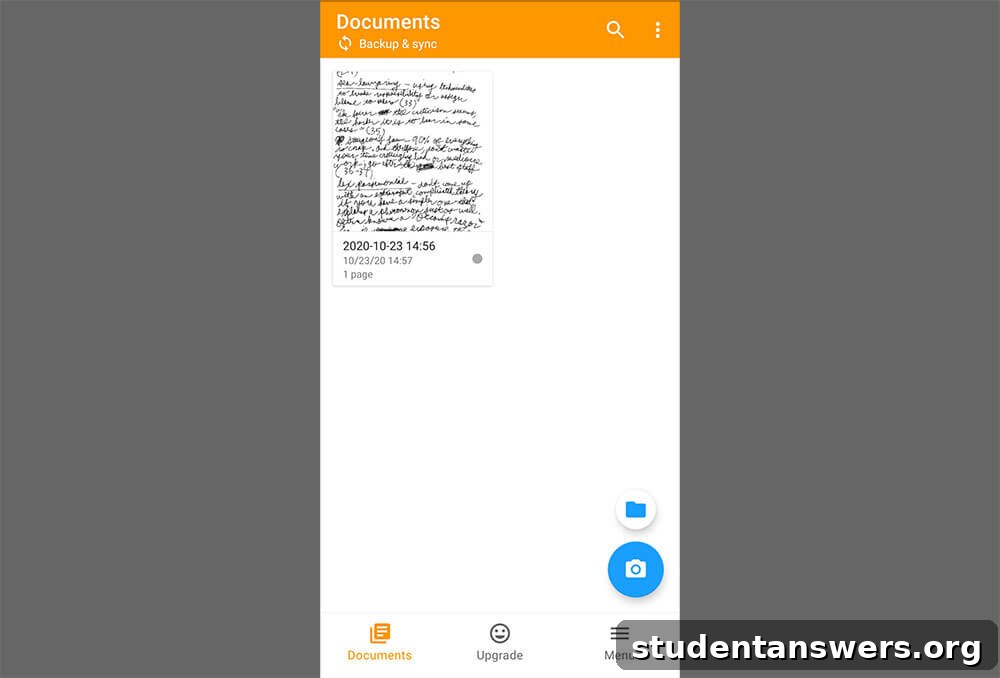
Overview: A straightforward scanner app that conceals a surprisingly powerful set of advanced export and security features.
At first glance, Genius Scan appears to be a simple, no-frills app. This simplicity is one of its greatest strengths. The scanning process is incredibly fast: point your camera, and the app quickly captures the document. You can easily create multi-page documents by continuing to scan new pages. The editing tools are robust, allowing for perspective correction, image enhancement, and organization into folders.
Where Genius Scan truly distinguishes itself is in its export capabilities. The free version allows you to export scans as JPEGs or multi-page PDFs to standard cloud services like Google Drive, Dropbox, and OneDrive. However, upgrading to the premium version, Genius Scan+, unlocks a host of options tailored for power users and businesses. You can export documents via WebDAV and FTP, which is rare for mobile scanner apps. It also offers PDF encryption with a password for enhanced security.
Furthermore, Genius Scan integrates with the separate Genius Fax app, allowing you to send faxes directly from your phone—a huge benefit for anyone who occasionally needs to interact with organizations that still rely on this older technology. The premium version also includes high-quality OCR to make your documents searchable.
Price: Free for unlimited scans. A one-time purchase of $7.99 (Genius Scan+) unlocks OCR, cloud export, and PDF encryption.
Platforms: Android, iOS
ScanGuru: The Feature-Packed iOS Powerhouse
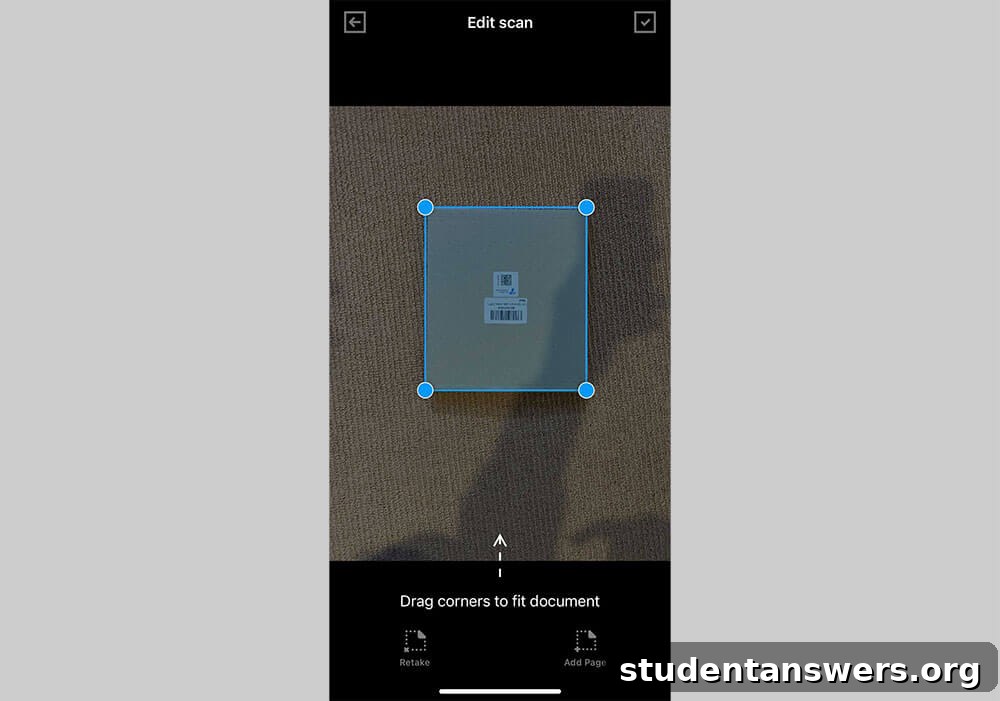
Overview: An iOS-exclusive app loaded with advanced features like document signing, watermarking, and powerful OCR.
ScanGuru is a comprehensive document management tool disguised as a scanner app. It handles the basics with ease, allowing you to quickly scan documents, adjust their borders, and apply filters for clarity. You can export your files in both PDF and JPEG formats to various cloud services.
The app’s main draw is its extensive feature set beyond simple scanning. Its OCR technology is highly effective, allowing you to extract text from images for editing or sharing. More importantly, ScanGuru provides tools to sign documents electronically, add watermarks for protection, annotate pages with notes, and even stamp them with custom text. This transforms the app into an all-in-one solution for many common office tasks, eliminating the need for a desktop computer to prepare and finalize documents.
You can even print your scanned documents directly from your iPhone to any Wi-Fi-enabled printer. However, this power comes at a cost. The free version is quite restrictive, with ads, a limit on the number of scans and folders, and no access to the advanced features like OCR or signing. The subscription model is also quite expensive, making it best suited for professionals who will use its advanced capabilities daily.
Price: Free version is limited. Premium costs $6.99/week, $69.99/year, or a $59.99 lifetime purchase.
Platforms: iOS
3 Excellent Built-in Scanner Alternatives
Before you download a new app, it’s worth checking if you already have a capable scanner built into an app you use every day. For many users, these integrated solutions are more than sufficient for occasional scanning tasks.
Google Drive (Android-Only)
If you’re an Android user, you have a surprisingly powerful scanner hidden inside the Google Drive app. To access it, simply open the Drive app, tap the large “+” button in the corner, and select “Scan.” This opens a camera interface that will automatically capture, crop, and enhance your document. It then saves the file directly to your Google Drive as a PDF, making it instantly accessible and shareable. It’s fast, convenient, and perfectly integrated for those in the Google ecosystem.
Apple Notes (iOS-Only)
iPhone and iPad users have a similar feature built into the native Notes app. Open a new or existing note, tap the camera icon in the toolbar, and choose “Scan Documents.” Your device’s camera will open and automatically look for a document in the frame. Once captured, the scan is placed directly into your note. From there, you can mark it up, sign it, and share it. It’s a seamless way to digitize a quick receipt or a whiteboard diagram without leaving Apple’s ecosystem.
Evernote
Evernote has long been a favorite for digital note-taking, and its document scanning feature is a core part of its appeal. When you create a new note, you can select the camera option to access the scanner. Evernote automatically detects the document type, captures the image, and enhances it for readability. The real magic happens after the scan is saved: Evernote’s powerful OCR automatically processes the document, making all the text within it fully searchable. This means you can find a specific receipt or report from months ago just by searching for a word that was on the page.
Start Scanning Smarter Today
The days of being chained to a physical scanner are over. The apps on this list offer a fantastic alternative, providing the power to digitize, edit, and share documents from anywhere. Whether you choose a feature-rich free app like Adobe Scan, an ecosystem-integrated tool like Microsoft Lens, or a convenient built-in option, you now have the tools to manage your documents more efficiently.
Embrace the convenience of having a high-quality scanner in your pocket. You’ll save time, reduce paper clutter, and streamline your workflow in ways you never thought possible.
Image Credits: document scanning with phone