
The Ultimate Guide to the Best Screen Recording Software in 2024
Sometimes, showing is far more effective than telling. You could spend hours writing thousands of words to explain a complex process, or you could convey the same information in a crystal-clear, 30-second screen recording. Visual demonstrations are powerful, intuitive, and save everyone time.
Fortunately, creating high-quality screen recordings has never been more accessible. The market is filled with excellent tools, ranging from completely free, open-source powerhouses to polished, premium software suites with advanced editing capabilities. Whatever your need—be it for work, a school project, or your burgeoning YouTube gaming channel—there is a perfect solution waiting for you.
However, the sheer volume of options can be paralyzing. To help you cut through the noise, we’ve meticulously tested and compiled this definitive guide to the best screen recording software available today. We’ll explore tools for every use case and budget, ensuring you find the right fit for your projects.
What Makes Great Screen Recording Software?
Before we dive into our top picks, let’s establish what to look for in a quality screen recorder. The “best” software depends on your specific needs, but great tools generally excel in these key areas:
- High-Quality Recording: The software should be able to capture your screen in high resolution (at least 1080p) with a smooth frame rate, ensuring your final video is crisp and professional. The ability to record system audio and microphone input simultaneously is also crucial.
- Ease of Use: A powerful tool is useless if it’s too complicated to operate. The best software features an intuitive interface that makes it easy to start recording, select your capture area, and manage your settings without a steep learning curve.
- Editing Capabilities: For many, recording is just the first step. Built-in editing tools—from simple trimming and cropping to more advanced features like adding text, annotations, callouts, and transitions—can save you from needing a separate video editor.
- Sharing and Export Options: Once your video is ready, you need a simple way to share it. Top-tier software allows you to export in various formats (like MP4) and may offer direct integration for uploading to platforms like YouTube, Google Drive, or its own cloud hosting service.
- Performance and Reliability: Screen recording can be resource-intensive. A good application should run smoothly without slowing down your computer or crashing mid-session, ensuring you don’t lose your valuable work.
1. OBS Studio: The Best Free and Open-Source Powerhouse
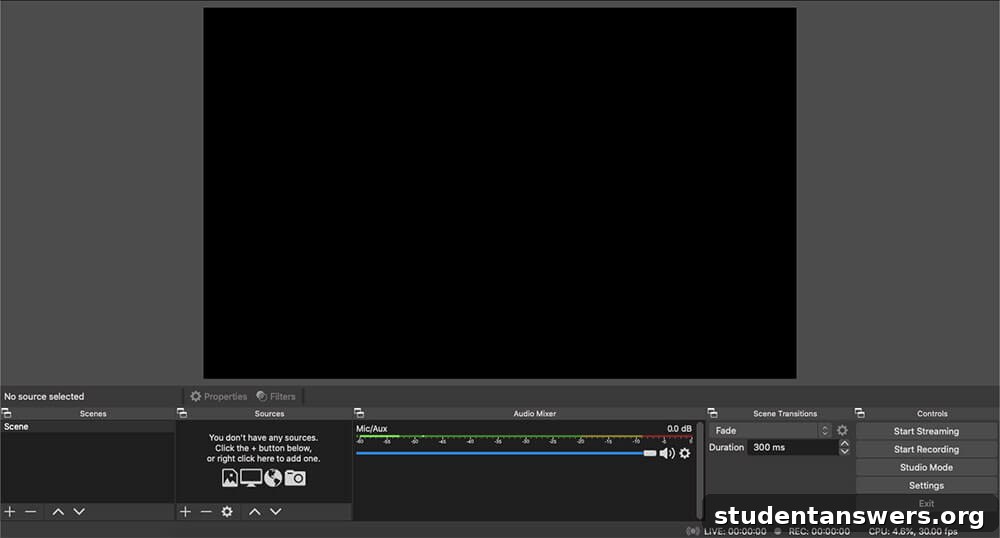
Overview: OBS (Open Broadcaster Software) Studio is the gold standard for free, open-source screen recording and live streaming. It offers a level of control and customization that rivals many premium applications.
OBS Studio is our top recommendation for anyone who needs professional-grade features without a price tag. While it’s famously the tool of choice for live streamers on Twitch and YouTube, its robust recording capabilities make it an incredibly powerful standalone screen recorder. Its core strength lies in its “Scenes” and “Sources” system. This allows you to create complex layouts by combining multiple elements—such as your full screen, a specific application window, your webcam feed, images, and text—and switch between them seamlessly during a recording.
This flexibility is perfect for creating dynamic tutorials, detailed software demonstrations, or engaging presentations. You can set up a scene for your introduction with a full-screen webcam, another for the main content showing your screen and a small webcam overlay, and a third for your conclusion. Beyond visual composition, OBS Studio features a sophisticated audio mixer, allowing you to combine and adjust audio from your microphone, system sounds, and other sources, complete with filters like noise suppression to ensure clean audio.
While its immense power is a huge advantage, it can also present a learning curve for absolute beginners. However, a massive community and countless online tutorials make it easy to master. For developers, the open-source nature and robust API mean you can build custom plugins and scripts to tailor the software to your exact workflow.
Price: Completely Free
Platforms: Windows, macOS, Linux
2. Loom: Best for Quick Video Messaging and Team Collaboration
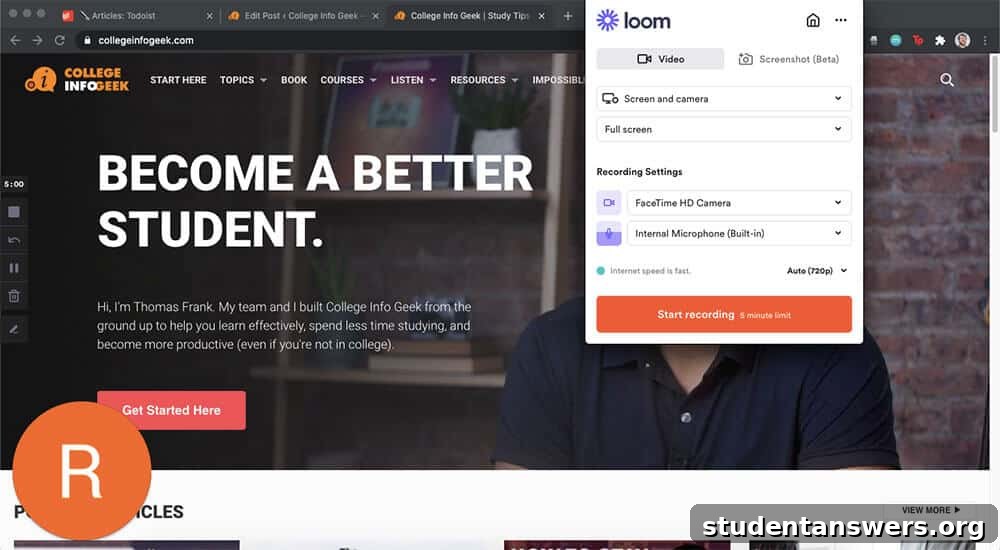
Overview: Loom has revolutionized asynchronous communication, making it incredibly simple to record and share screen recordings for work.
Loom positions itself as a “video messaging” tool, and it excels at this. If you need to quickly explain a concept to a colleague, provide feedback on a design, or create a short tutorial for a client, Loom is unparalleled in its speed and simplicity. The workflow is seamless: you record your screen (with an optional webcam bubble), and the moment you stop, a shareable link is automatically copied to your clipboard. There’s no rendering, no uploading, and no waiting.
This immediacy makes it a favorite in remote and hybrid work environments. Instead of typing a long email or scheduling a meeting, you can send a Loom video that conveys tone and context far more effectively. Collaboration is built into its DNA. Viewers can react to your video with emojis and leave time-stamped comments, allowing for precise, contextual feedback. The platform also offers basic editing features like trimming, and its AI suite can automatically generate a title, summary, and chapters for your recording, saving you even more time.
Price: A generous free plan is available for individuals with limits. The Business plan, starting at $12.50/user per month, unlocks unlimited videos and advanced features. Verified educators and students can get a free premium plan through Loom for Education.
Platforms: Windows, macOS, iOS, Android, Chrome Extension
3. ScreenPal (Formerly Screencast-O-Matic): The All-in-One Content Creation Tool
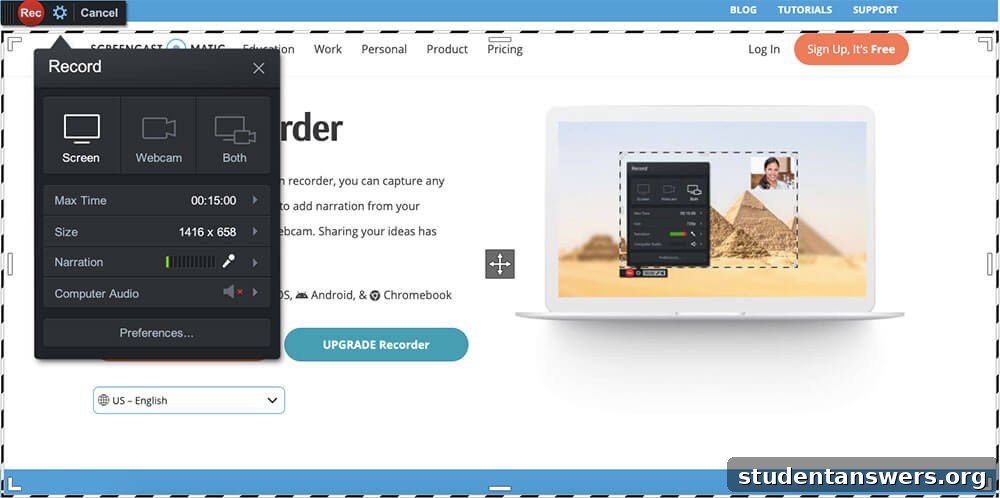
Overview: ScreenPal is a versatile, all-in-one platform for screen recording, video editing, and hosting, making it a fantastic choice for educators and marketers.
ScreenPal offers more than just screen capture; it provides a complete ecosystem for creating and distributing video content. The screen recorder itself is robust, allowing you to capture any part of your screen, your webcam, or both simultaneously. It also includes useful features like scripted recordings and automated captioning to improve accessibility.
Where ScreenPal truly stands out is its integrated video editor. Even on its affordable paid plans, you gain access to a surprisingly powerful suite of editing tools. You can easily trim clips, add overlays and annotations, incorporate stock music and images from its built-in library, and apply effects like a green screen filter. This means you can handle your entire production workflow, from recording to final polish, within a single application.
Once your video is complete, ScreenPal offers its own hosting solution, allowing you to create a branded content channel, manage your videos, and easily embed them on your website or share them on social media. This integrated approach makes it an excellent value proposition for anyone who regularly creates educational or promotional videos.
Price: A free version is available with a watermark and recording limits. Paid plans with advanced editing and hosting start at very affordable yearly rates.
Platforms: Windows, macOS, iOS, Android, Chromebook
4. Camtasia: The Professional’s Choice for Polished Tutorials
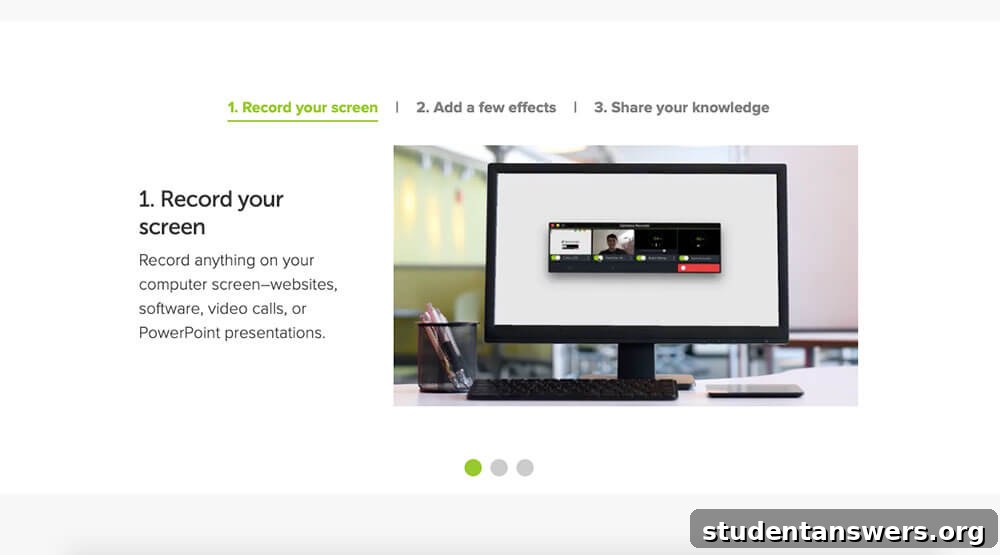
Overview: Developed by TechSmith, Camtasia is a premium, all-in-one screen recorder and video editor designed for creating professional-quality training videos, software tutorials, and presentations.
Camtasia is the heavyweight champion for users who need maximum power and polish. It is not the cheapest option, but it justifies its price by combining a high-fidelity screen recorder with a full-featured, user-friendly video editor. On the recording side, it captures your screen, webcam, and audio in pristine quality. You can even import PowerPoint slides directly and have them converted into a dynamic video presentation.
The real magic happens in the editor. Camtasia is packed with features specifically designed for instructional videos. You can use pre-made templates to ensure brand consistency, add animated callouts and annotations to draw attention to key areas, and use cursor effects to smooth out mouse movements and add visual clicks. Its library of royalty-free music and assets helps you add a professional touch, while features like interactive quizzes and surveys can make your content more engaging (when shared via the TechSmith Smart Player).
If your job involves creating polished, high-stakes video content for corporate training, customer education, or marketing, Camtasia is a worthwhile investment that streamlines your workflow and delivers impeccable results.
Price: A one-time purchase of $299.99 per user, which includes one year of maintenance. A 30-day free trial is available.
Platforms: Windows, macOS
5. ScreenFlow: The Sleek and Powerful Editor for Mac Users
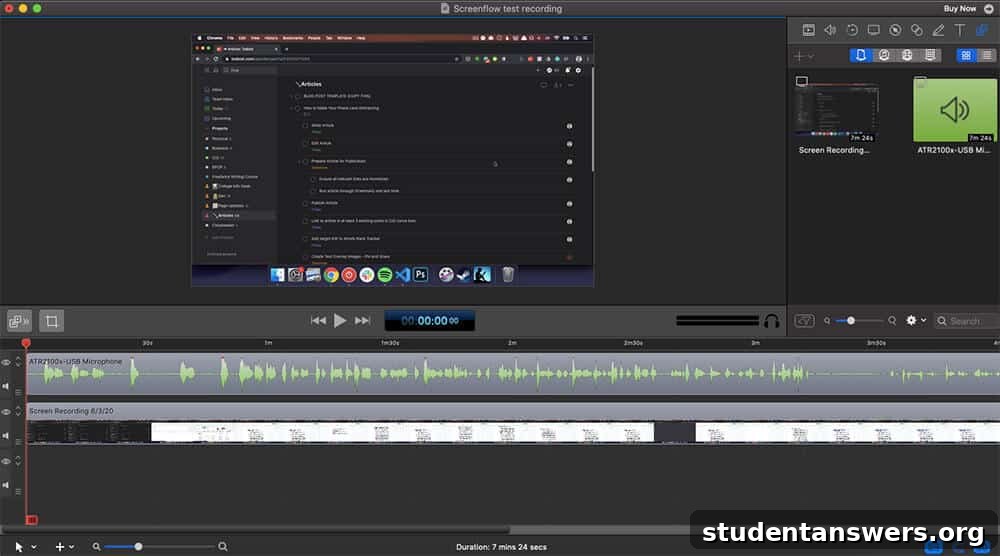
Overview: ScreenFlow is a Mac-exclusive screen recording and video editing software known for its elegant interface, high performance, and impressive motion graphics capabilities.
For Mac users who find Camtasia a bit too complex or want a more native-feeling application, ScreenFlow is the perfect alternative. It offers best-in-class screen and iOS device recording, capturing your Mac’s Retina display in stunning detail. The app is celebrated for its intuitive and easy-to-learn interface, which makes the editing process feel fluid and natural.
Despite its simplicity, ScreenFlow is incredibly powerful. It provides all the essential editing tools, plus some impressive advanced features. You can add professional transitions, text animations, and video filters to enhance your recordings. Its standout feature, however, is its built-in tools for creating animations and motion graphics. You can easily animate text, logos, and callouts to create dynamic and engaging video content that looks professionally produced. For Mac-based content creators, educators, and app developers, ScreenFlow hits the sweet spot between power and ease of use.
Price: A one-time payment of $149. A free trial is available (adds a watermark to exported videos).
Platforms: macOS
Free Built-In Alternatives for Basic Recording
If you don’t need fancy editing features and just want to make a quick, simple recording, your computer already has you covered. These built-in tools are perfect for occasional use:
- For Windows 10 & 11 (Xbox Game Bar): Originally designed for gaming, the Xbox Game Bar (activated with Win + G) includes a surprisingly capable screen recorder. It primarily records the active application window, making it great for capturing a quick software demo. It’s simple, free, and already on your PC.
- For macOS (Screenshot Toolbar): Mac users can press Cmd + Shift + 5 to bring up a powerful screenshot and screen recording utility. It gives you precise control to record your entire screen or a selected portion. After recording, you can perform basic trims directly in QuickTime Player.
Conclusion: Choose the Right Tool for Your Task
The world of screen recording software is vast, but choosing the right tool doesn’t have to be complicated. Your ideal choice depends entirely on your needs. For ultimate power and flexibility at no cost, OBS Studio is unbeatable. For lightning-fast video messaging and team collaboration, Loom is the clear winner. If you need an affordable all-in-one solution for creating and editing, ScreenPal offers incredible value. And for professionals who demand the highest level of polish, Camtasia (for Windows/Mac) and ScreenFlow (for Mac) are premier investments.
With the right software at your disposal, you can create compelling tutorials, provide clearer feedback, and communicate your ideas more effectively than ever before. Go forth and start recording!