
Is your email inbox a source of constant stress? Do you feel like you spend your entire day just trying to keep up, only to see more messages pile up? You’re not imagining it. In fact, you’re in the same boat as millions of professionals.
Research from firms like McKinsey consistently shows that the average office worker dedicates over a quarter of their workweek—around 28%—to reading, sorting, and responding to emails. That’s more than a full day of work lost to your inbox every single week. This is a massive drain on your time and mental energy, often for tasks that produce little real value and contribute to burnout.
But it doesn’t have to be this way. It’s possible to tame the email beast and achieve the coveted state of “Inbox Zero”—a clear, organized inbox that works for you, not against you. This guide will walk you through a series of powerful, actionable strategies to conquer your email, reclaim your time, and focus on the work that truly matters.
Stop Living in Your Inbox: The Power of Scheduled Email Time
How often do you check your email? If you’re like most people, the answer is “constantly.” That little notification pop-up or the unread count on your phone is a powerful temptation, pulling you away from important tasks. You might justify it by thinking, “What if there’s an emergency?”
While the intention is good, this habit is devastating to your productivity. Deep, meaningful work requires sustained focus. Every time you switch from a task to your inbox and back again, your brain pays a “switching cost.” This is the time and mental energy it takes to disengage from one activity and fully re-engage with another. These small interruptions add up, fragmenting your attention and preventing you from ever entering a state of flow.
The solution is simple yet transformative: schedule specific times to process your email. Instead of checking it sporadically throughout the day, dedicate one or two focused blocks of time—perhaps 30 minutes in the late morning and 30 minutes before you finish work—to handle all your messages at once. This practice, known as “batching,” allows you to remain focused on your primary tasks without interruption.
Crucial Note: This strategy is only effective if you disable all email notifications. Turn off the desktop pop-ups, the sound alerts, and the red badges on your phone. Unless your role genuinely requires you to make split-second decisions based on incoming emails, these notifications are doing more harm than good. Your work is important, but very few things are so urgent they can’t wait an hour or two for a response.
Embrace the One-Touch Rule: Archive or Delete Immediately
Now that you’ve scheduled your email time, the next step is to process your messages efficiently. The biggest mistake people make is treating their inbox as a long-term storage archive or a to-do list. This leads to clutter and confusion. Your inbox should be treated as a temporary processing station, not a permanent home for messages.
Adopt the “one-touch” principle: whenever you open an email, decide its fate immediately. Once you’ve dealt with a message, get it out of your inbox. You have two primary options:
- Archive: Use this for any message that you don’t need to act on but might want to reference later. This could include confirmations, important conversations, or reference documents. Modern email services offer vast storage, so you don’t need to worry about running out of space. The message is safely stored away and easily found with a quick search.
- Delete: Use this for anything you will never need again. This includes marketing junk, old notifications, or conversations that are definitively over. Be ruthless.
By immediately archiving or deleting every message you’ve handled, you ensure your inbox only contains items that still require your attention.
Declare War on Clutter: Unsubscribe Aggressively
An effective defense is the best offense. To spend less time managing email, you need to reduce the number of messages you receive in the first place. The biggest culprits are often newsletters, promotional emails, and marketing messages you signed up for long ago.
Be honest with yourself. Are you actually reading that daily deals newsletter or the weekly update from a service you no longer use? If you find yourself consistently archiving or deleting messages from the same sender without ever opening them, it’s a clear signal to unsubscribe. Don’t just delete them; take the extra five seconds to scroll to the bottom and click the “unsubscribe” link. Every subscription you cut is dozens of future emails you won’t have to process.
Pro Tip: For newsletters you genuinely want to read but don’t want cluttering your inbox daily, create a filter. You can set up a rule that automatically archives these messages and applies a “Newsletter” label. This way, they bypass your inbox entirely but are collected in one place for you to read at your leisure, like on a Saturday morning.
If a sender ignores your unsubscribe request, don’t hesitate to mark their emails as spam. This is not rude; it’s enforcing your preference. Federal laws like the CAN-SPAM Act require businesses to honor unsubscribe requests promptly.
Your Inbox Is Not a To-Do List: Reclaim Your Task Management
Using your inbox as a task manager is perhaps the single worst email habit. An email arrives with a request. You know you need to act on it, but it requires more than a quick reply. You tell yourself, “I’ll leave it in my inbox as a reminder to do it later.” Soon, your inbox is filled with dozens of these “reminders,” creating a stressful, disorganized mess where important tasks get buried.
A dedicated task management system is essential. Here’s how to use it in tandem with your inbox:
1. Triage Your Inbox
First, clear out the easy stuff. Archive any messages that are for information only and delete anything that’s junk. Your goal is to be left with only emails that require a specific action from you.
2. Apply the 2-Minute Rule
Scan the remaining emails. For any message where the required action will take two minutes or less to complete, do it immediately. This could be a quick confirmation reply, forwarding a document, or answering a simple question. It takes more time and mental energy to track a small task than it does to simply complete it on the spot.
3. Move Larger Tasks to Your To-Do List
For any email that requires more than two minutes of work, it needs to be moved out of your inbox and into your task manager. Don’t just copy the subject line. Create a clear, actionable task. For example, an email with the subject “Q4 Report” should become a task like, “Analyze sales data for Q4 report” or “Draft initial summary for John’s Q4 report.”
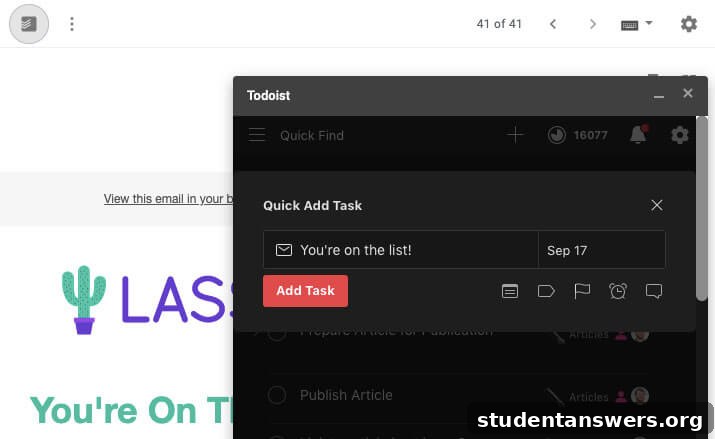
Many modern task managers like Todoist, Asana, or TickTick offer integrations with email clients. With a browser extension, you can turn an email into a task with a single click. These tools often include a link back to the original email, so you have all the context you need when you’re ready to work on it. After creating the task, archive the email. Your inbox is now clear, and your tasks are neatly organized in a system designed for that purpose.
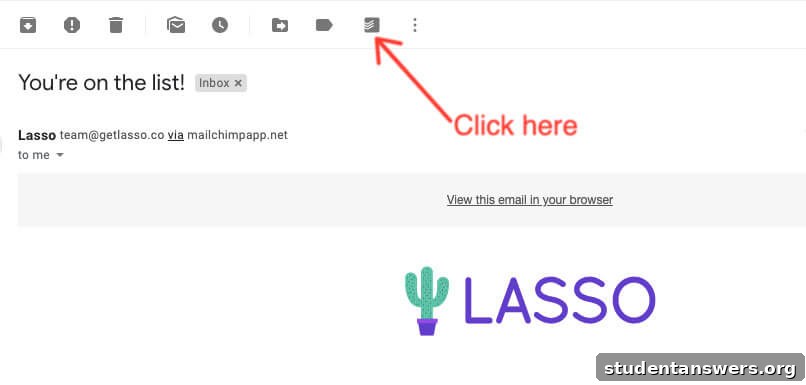
With the click of a button, the email is converted into a task, ready to be prioritized in your system.
Master Your Archive: Search Over Sorting
Many old-school productivity guides recommend creating complex systems of folders and tags to organize your archived emails. They advocate for a rigid, hierarchical structure similar to the files on your computer. In reality, this is often a waste of time.
Modern email search is incredibly powerful. Instead of spending minutes deciding which of your 50 folders a message belongs in, just archive it. When you need to find it later, use the search bar. You can search by sender, recipient, subject line, keywords in the body, or even date ranges. Learning a few advanced search operators (like `from:[email protected]` or `has:attachment`) makes you even more efficient. For 99% of your emails, search is faster and more flexible than any manual filing system you could design.
The only exception is for a few, critically important categories. For example, you might create a single tag or folder called “Receipts” for all your business expense emails. This makes it easy to find everything you need during tax season. But for everything else, trust the search.
Put Your Email on Autopilot with Smart Filters
Email filters are one of the most underutilized productivity tools. Filters are simple rules you create to automatically manage incoming mail. This automation can save you hundreds of clicks and countless hours over time.
Think about the types of emails you get regularly. You can create filters to:
- Automatically apply a “Receipts” label to any email from services like Amazon, Uber, or your favorite software tools.
- Skip the inbox and archive non-critical notifications from project management tools, social media, or internal systems.
- Automatically star any email that comes from your boss or a VIP client.
- Forward specific types of emails, like invoices, to your accounting department or software.
- Delete recurring spam that somehow makes it past the main spam filter.
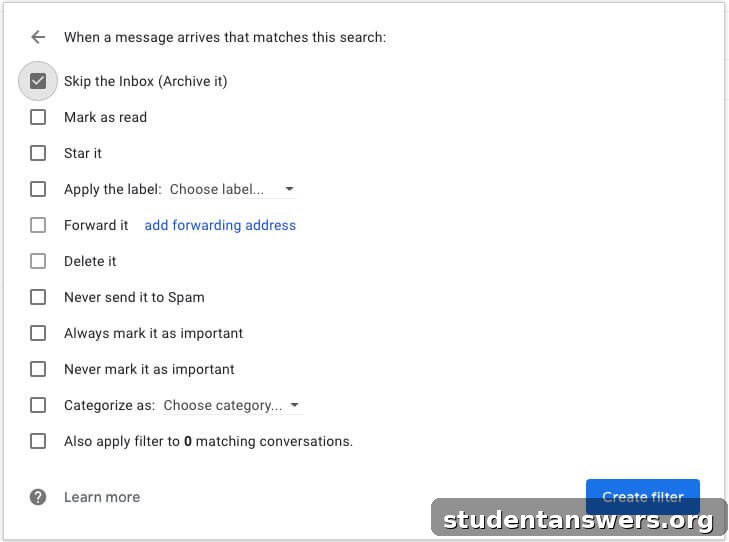
Setting up a filter in a service like Gmail is straightforward. Go to Settings, find the “Filters and Blocked Addresses” tab, and click “Create a new filter.” You can set conditions based on the sender, subject, keywords, and more. Then, you choose an action, like applying a label, archiving, or starring it. Investing 15 minutes to set up a few key filters will pay dividends for years to come.
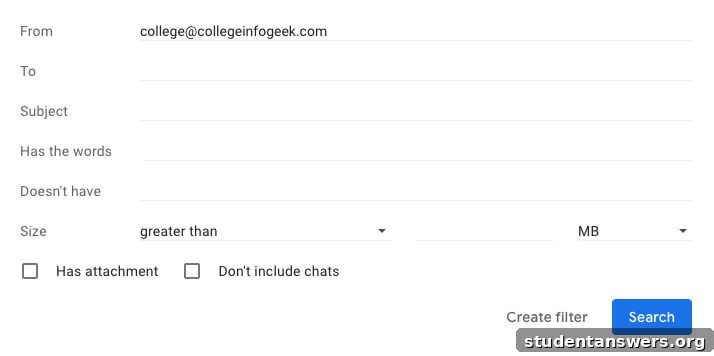
After defining your criteria, you choose what you want Gmail to do with matching messages automatically.
Prevent Unnecessary Replies: The Art of Clear Communication
So far, we’ve focused on processing email efficiently. But what if you could prevent many emails from ever being sent in the first place? A significant portion of email traffic is clarification—people asking for more information because the original message was vague or incomplete.
You can dramatically reduce this back-and-forth by writing clearer, more effective emails from the start. Before you hit send, take an extra 30 seconds to review your message and ask yourself a few key questions:
- Is the subject line specific? “Question” is a bad subject line. “Question about Q4 Marketing Budget Deadline” is a great one.
- Is the main point in the first sentence? Don’t bury the lead. State your purpose immediately.
- Is the action required clear? If you need the recipient to do something, state it explicitly. Use bold text for deadlines or critical details.
- Have I anticipated their questions? If you’re scheduling a meeting, propose specific times. If you’re asking for feedback, attach the relevant document.
This small investment of time upfront can save everyone hours of follow-up emails down the line.
Achieving Inbox Zero and Beyond
Email often feels like an unbeatable force, a digital hydra where two new messages appear for every one you handle. But with the right systems and habits, you can take back control. By scheduling your email time, processing messages decisively, unsubscribing from junk, using a proper task manager, and leveraging tools like filters, you can achieve and maintain Inbox Zero.
This isn’t just about having a tidy digital space. It’s about reducing stress, increasing your focus, and freeing up your most valuable resources—your time and attention—for the creative, strategic, and impactful work that truly moves the needle.
For more tips on becoming a more organized and effective person, explore these resources:
- How to Easily Stay Organized and Productive in College
- How I Use My Calendar Efficiently
- The Best Way to Organize Your Files and Folders