
The Ultimate Guide to Organizing Files: Master Your Physical and Digital Documents
If you’re like most people, your home has several “unofficial” storage spots for important papers and documents. The corner of your desk, the kitchen counter, or even the bottom of a backpack often become cluttered graveyards for files that deserve a proper home. This disorganization can lead to stress, wasted time, and the frustration of not being able to find what you need when you need it.
It’s time to say goodbye to the chaos. This comprehensive guide will provide you with a simple yet powerful system to organize every single file, document, and paper in your life. We will transform your messy piles into a streamlined, efficient, and easy-to-manage system.
First, we’ll determine which files need to remain in physical form and which can be digitized. Next, you’ll learn the highly effective Three-Location System for managing all your physical paperwork. Finally, we’ll walk you through the process of going paperless, showing you how to digitize your files for ultimate accessibility and security. Let’s begin the journey to a more organized life.
Physical vs. Digital: How Should You Store Your Files?
In our increasingly digital world, the idea of keeping paper files might seem outdated. With cloud storage and powerful search tools at our fingertips, shouldn’t we all aim for a completely paperless existence? The most practical answer for most people is “mostly, but not entirely.”
The best strategy is to digitize whenever possible. Transforming a piece of paper into a digital file frees up physical space, makes it instantly searchable, and allows for secure backups. My first instinct with any new document is to either recycle it immediately (like junk mail) or digitize it and then shred or recycle the original. This approach keeps physical clutter to an absolute minimum.
However, some documents are either legally required to be kept in their original physical form or are simply too important to exist only as a digital copy. Until our world becomes fully digital, it’s crucial to maintain a secure physical filing system for these essential items.
Documents You Need to Keep on Paper
Your physical file system should be reserved for your most critical and irreplaceable documents. Make sure you have a secure, designated place for the following items:
- Personal Identification: Passports, original birth certificates, and social security cards.
- Legal and Official Documents: Marriage licenses, wills, living wills, and power of attorney documents.
- Property and Asset Documents: Vehicle titles, house deeds, mortgage documents, and property loan paperwork.
- Business and Professional Licenses: Any official licenses required for you to operate your business or practice your profession.
While you may not have all of these documents now, you will likely acquire them throughout your life. It’s wise to establish a system to protect them from the start. Additionally, you may want to preserve certain sentimental documents. This could include special birthday cards, newspaper clippings you were featured in, or artwork from a loved one. These items have emotional value and deserve a safe place in your physical system.
The Three-Location System for Organizing Physical Files
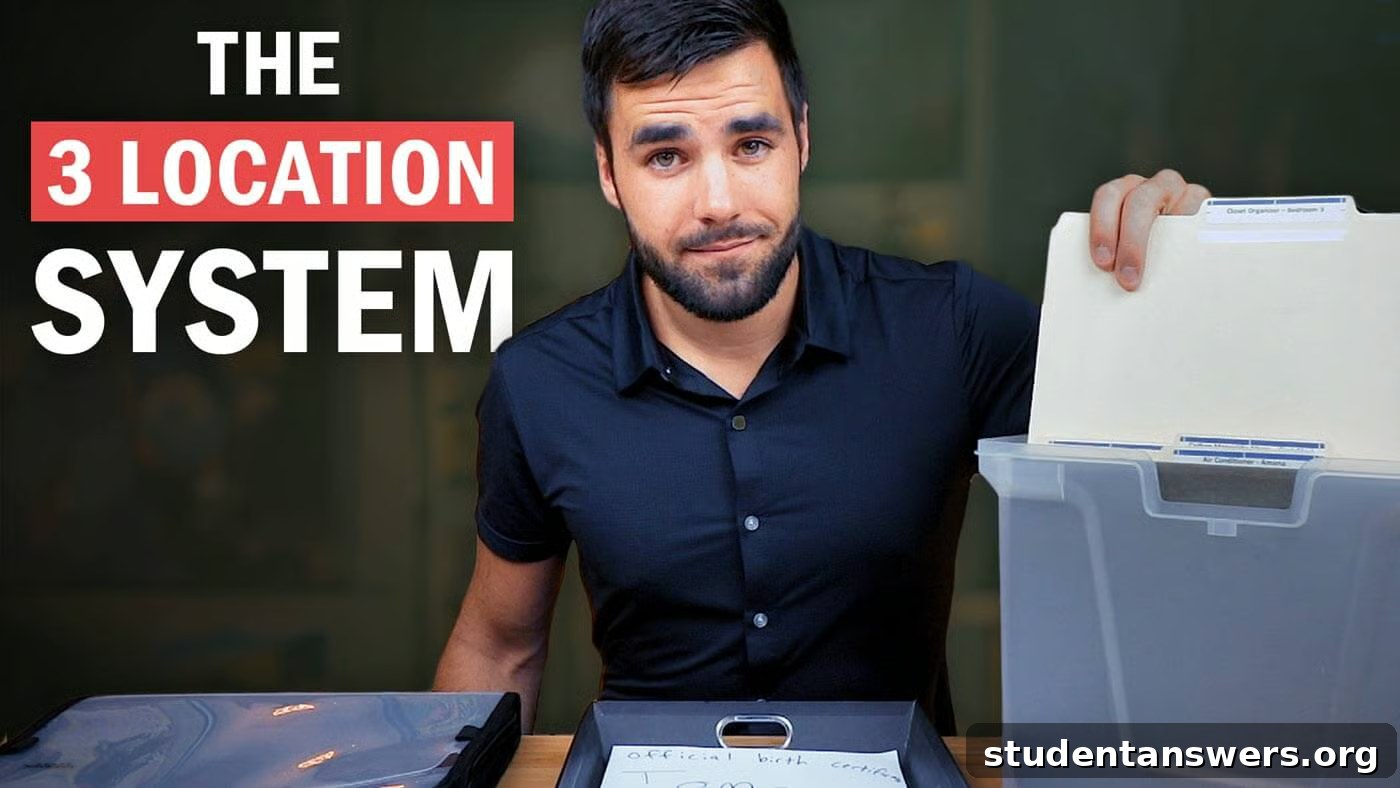
To manage the papers you do need to keep, you don’t need a complicated setup. I use a simple and effective system built around three key locations. This framework will handle the vast majority of your paper management needs with minimal effort.
- Main File Box: The central hub for long-term storage.
- Inbox: A temporary holding area for incoming papers.
- Portable File Folder: Your on-the-go organization tool.
1. The Main File Box
The main file box is the final destination for any physical document that you’ve decided to keep. For most people, a single, portable file box is more than sufficient and more practical than a large, multi-drawer filing cabinet. Look for a box designed to hold hanging folders, as these make browsing and organizing incredibly easy.
When setting up your file box, create a logical structure. Each hanging folder should represent a broad, top-level category. Good starting categories include:
- Financial (Bank Statements, Taxes, Investments)
- Medical (Insurance, Health Records, Bills)
- Household (Mortgage/Lease, Utilities, Warranties)
- Automotive (Title, Registration, Maintenance Records)
- Personal (IDs, Certificates, Employment Records)
If you need more detailed organization within a category, you can place standard manila folders inside each hanging folder. For example, within your “Household” hanging folder, you might have separate manila folders for the “Refrigerator Warranty,” “Security System,” and “Plumbing Receipts.” This creates a clean, tiered system that is easy to navigate.
2. The Inbox
Let’s be honest: when you get a piece of mail or a document that needs to be filed, you probably don’t stop everything to put it in the perfect spot immediately. More often, it lands on the kitchen table, creating a pile of “to-be-dealt-with-later” clutter. This is where the inbox comes in.
An inbox is a simple tray that sits on your desk or another convenient location. It has one job: to be the single, designated holding area for every piece of paper that enters your home. Instead of scattering papers across various surfaces, you place them directly into the inbox. There, they wait safely for processing.
Set aside time at least once a week for a “processing session.” During this time, go through everything in your inbox. For each item, make a decision: act on it (like paying a bill), digitize it, file it in your main file box, or recycle/shred it. This batching process is far more efficient than dealing with each paper individually as it arrives.
3. The Portable File Folder
Your organization system needs to work even when you’re away from home. A portable file folder is the solution for managing papers you acquire at work, in class, or while running errands. Its function can adapt to your needs.
For most people, a single, slim folder in your backpack or bag is sufficient. It acts as a portable inbox, giving you a safe place to store receipts, handouts, and other documents you collect throughout the day. When you get home, simply empty this folder’s contents into your main desk inbox for your next weekly processing session.
However, if you’re a student who juggles assignments for multiple classes or a professional who carries important business papers, you’ll need something more robust. In this case, a portable accordion folder is an excellent choice. It functions as a mini, portable file box with multiple sections. You can dedicate each section to a different class or project, keeping your active documents organized, separate, and easily accessible wherever you are.
How to Go Paperless: Digitize Your Physical Files
While a great physical system is essential, the ultimate organizational upgrade is to digitize as many documents as possible. Going paperless allows you to store your files in the cloud, freeing you from the constraints of physical paper forever.
Digitization is the process of scanning your physical files and converting them into digital formats like PDFs or images. Once digitized, your files gain superpowers:
- They take up zero physical space in your home or backpack.
- They can be backed up, making them invulnerable to fire, flood, or loss.
- They become searchable, allowing you to find any document in seconds.
- They are accessible from any device, anywhere in the world.
Today, you don’t need a bulky desktop scanner. The high-resolution camera in your smartphone is all you need. With the right mobile app, you can scan documents, receipts, and notes wherever you are and automatically send them to your digital filing system.
The Best Document Scanner Apps
A good document scanning app is crucial for a smooth paperless workflow. While many apps exist, look for one with features that make the process fast and seamless. I recommend using an app like Adobe Scan, Microsoft Lens, or Scanbot.
Key features to look for include automatic edge detection, which perfectly crops the document for you, and the ability to scan multiple pages into a single PDF. The most powerful feature, however, is the automatic upload capability. You can configure these apps to automatically send every new scan to a specific folder in a cloud service of your choice, such as:
- Google Drive
- Dropbox
- Evernote
- OneDrive
- OneNote
This automation removes friction from the process. You can scan a receipt in seconds at the store, and it will be waiting for you in your digital “inbox” folder without any extra effort.
Create a Digital “Inbox” Folder on Your Computer
Just as you have a physical inbox, it’s a great idea to create a digital one. Create a folder named “!Inbox” or “To Be Filed” in your preferred cloud storage service (the “!” helps keep it at the top of your folder list). Set your scanner app to automatically upload all new scans to this folder.
This workflow allows you to capture documents instantly and move on with your day. Later, during your weekly review, you can sit down and efficiently process everything in this digital inbox, moving each file to its permanent, organized folder in your digital system. This is the same efficient batch-processing principle we apply to physical papers.
Shred Sensitive Documents
Once you’ve successfully digitized a document, you can get rid of the paper version. For most non-sensitive items, recycling is the best option. However, for any document containing personal information, you must take an extra security step.
Identity thieves have been known to sift through trash and recycling bins to find papers with account numbers, social security numbers, or other sensitive data. To protect yourself, never simply throw these documents away. Instead, shred them.
A cross-cut shredder is a worthwhile investment. It cuts paper into tiny, confetti-like pieces, making it nearly impossible for anyone to reconstruct. Get into the habit of shredding any digitized document that contains personal or financial information. It’s a simple step that provides significant protection against identity theft.
Organization is an Ongoing Process
Setting up an excellent filing system is the first step, but the real key to long-term success is consistently using it. Make organization a habit, not a one-time project. When you receive a new document, immediately place it in your physical or portable inbox. Stick to your weekly schedule for processing everything.
It’s also helpful to schedule a review of your entire system every few months. Take some time to go through your file box and digital folders to ensure everything is in its proper place and to purge any documents you no longer need. This regular maintenance prevents chaos from slowly creeping back into your system and ensures you always know exactly where to find everything.