
In today’s fast-paced world, juggling responsibilities as a student or a professional can feel overwhelming. Trying to keep track of every deadline, appointment, and task mentally is a recipe for stress and missed opportunities. When your brain is cluttered with an endless to-do list, it has little room left for deep thinking and creative problem-solving.
Fortunately, there’s a powerful solution: outsourcing your memory to an external task management system. By transferring your to-do list from your mind to a dedicated application, you liberate valuable mental energy. This allows you to focus on executing important tasks rather than struggling to remember them. The result is reduced stress, increased focus, and a significant boost in productivity.
However, the sheer number of available to-do list apps can make choosing the right one a challenge in itself. To save you time and effort, we’ve meticulously researched and compiled a definitive list. Below, we review the 10 best to-do list apps for 2024, complete with a detailed breakdown of their pros, cons, and pricing. This guide will help you find the perfect tool to organize your life and achieve your goals.
Todoist: The Master of Simplicity and Power
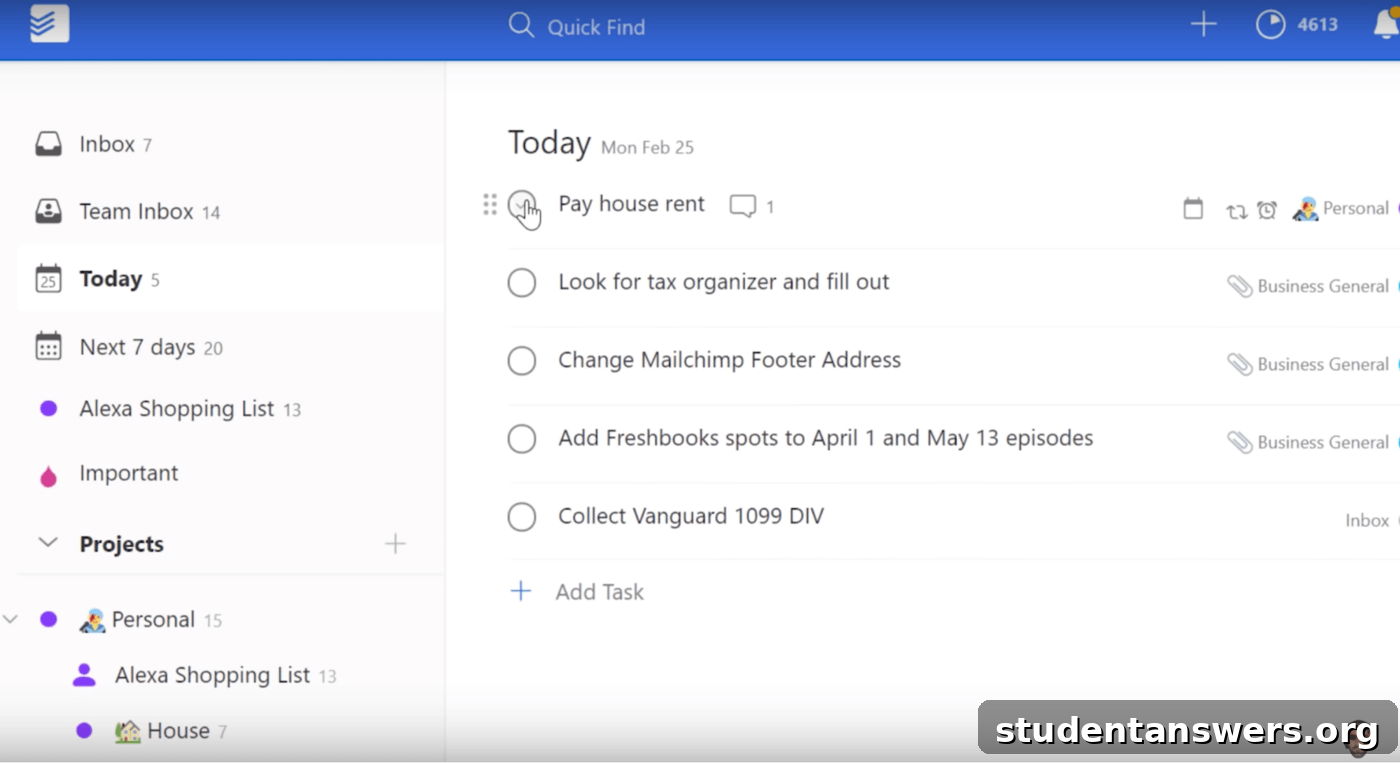
Overview: Todoist is widely acclaimed for its perfect balance of a clean, minimalist interface and a robust set of features. It excels with its powerful tagging, project organization, and best-in-class natural language processing, making it a favorite for individuals and teams alike.
Pros
- Unmatched Natural Language Processing. Todoist’s standout feature is its ability to understand plain English. You can simply type “Submit history paper next Friday #School @HighPriority” and the app will automatically create a task named “Submit history paper,” set the due date for next Friday, assign it to the “School” project, and flag it as high priority. This intuitive input method makes task creation incredibly fast and seamless.
- Perfect Balance of Power and Usability. Todoist hits the sweet spot between advanced functionality and ease of use. It offers a comprehensive suite of organizational tools, including nested projects, labels, dynamic filters, and priority levels. This flexibility allows you to customize the app to fit any workflow, from a simple daily checklist to a complex project management system, without a steep learning curve.
- Ubiquitous Quick Add. The ability to capture a task the moment it comes to mind is crucial. Todoist excels here with its universal availability. It has native apps for Mac and Windows, mobile apps for iOS and Android, browser extensions for Chrome and Firefox, and deep integrations with email clients like Gmail and Outlook. No matter where you are, adding a task is just a click or a tap away.
Cons
- Windows App Lags Behind Mac. While the Todoist experience is generally consistent across platforms, the Windows desktop application isn’t as polished or feature-rich as its macOS counterpart. It’s functional, but users may notice minor UI inconsistencies and a slightly less fluid experience.
- Custom Views Require Configuration. Todoist includes default views like “Today” and “Upcoming.” However, creating more specific, personalized views—such as “Show all tasks for my ‘Thesis’ project due in the next month”—requires you to learn and use the app’s custom filter syntax. While powerful, it can be a bit intimidating for new users.
Price: Free plan with core features. The Pro plan is $48 per year and unlocks reminders, unlimited activity history, file uploads, and more.
Platforms: Android, iOS, macOS, Windows, Web, Wear OS, Apple Watch.
TickTick: The Feature-Rich Productivity Suite
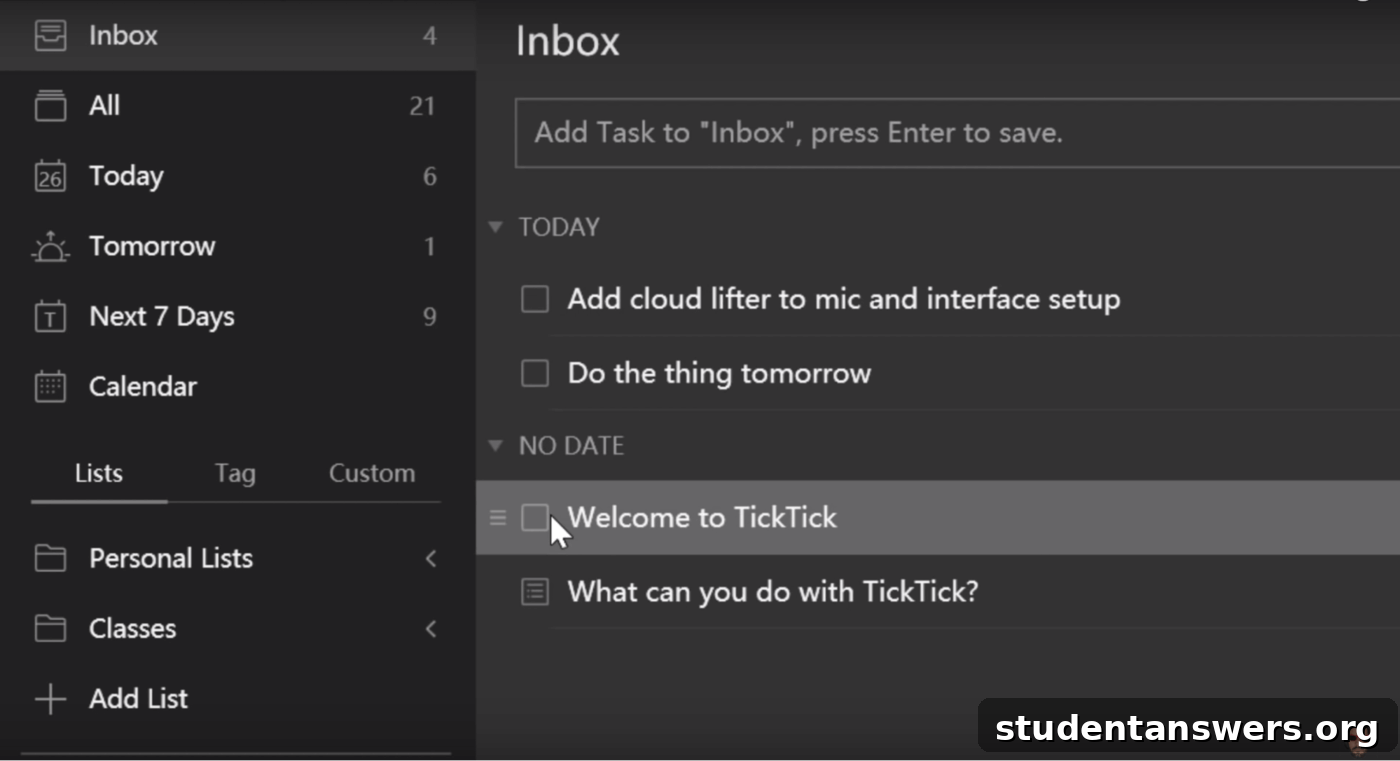
Overview: TickTick is a direct and formidable competitor to Todoist, offering a very similar user interface and core feature set. It differentiates itself by including a variety of built-in productivity tools, such as a Pomodoro timer and a habit tracker, making it an all-in-one solution for many users.
Pros
- Exceptional Value. TickTick offers nearly all the functionality of Todoist but at a more affordable price point. For $27.99 a year, its premium plan includes features that many competitors charge more for, such as a fully integrated calendar view and powerful custom “smart lists” for filtering tasks.
- Built-in Productivity Tools. TickTick goes beyond simple task management. It includes a native Pomodoro timer to help you focus on specific tasks, a habit tracker to build positive routines, and even a white noise generator on mobile to help you concentrate. These integrated tools eliminate the need for multiple separate apps.
- User-Friendly Features. The app is packed with thoughtful details that enhance the user experience. The “Plan My Day” feature helps you select your priorities for the day, you can set both start and due dates for tasks, and you can easily add new tasks to the top or bottom of a list.
Cons
- Calendar Sync Requires Premium. While the built-in calendar view is excellent, syncing TickTick with external calendars like Google Calendar or Apple Calendar is a premium feature. Free users cannot take advantage of two-way calendar integration.
- Generous but Limited Free Plan. The free version is quite capable but has limitations. You’re restricted to 9 lists, 99 tasks per list, and 19 subtasks per task. For users managing large-scale projects or complex workflows, these limits could become a constraint.
Price: Free with limitations. The Premium plan is $27.99 per year and unlocks the full suite of features, including calendar sync, custom filters, and more themes.
Platforms: Android, iOS, macOS, Windows, Web, Apple Watch.
Microsoft To Do: The Ultimate Free Task Manager for the Microsoft Ecosystem
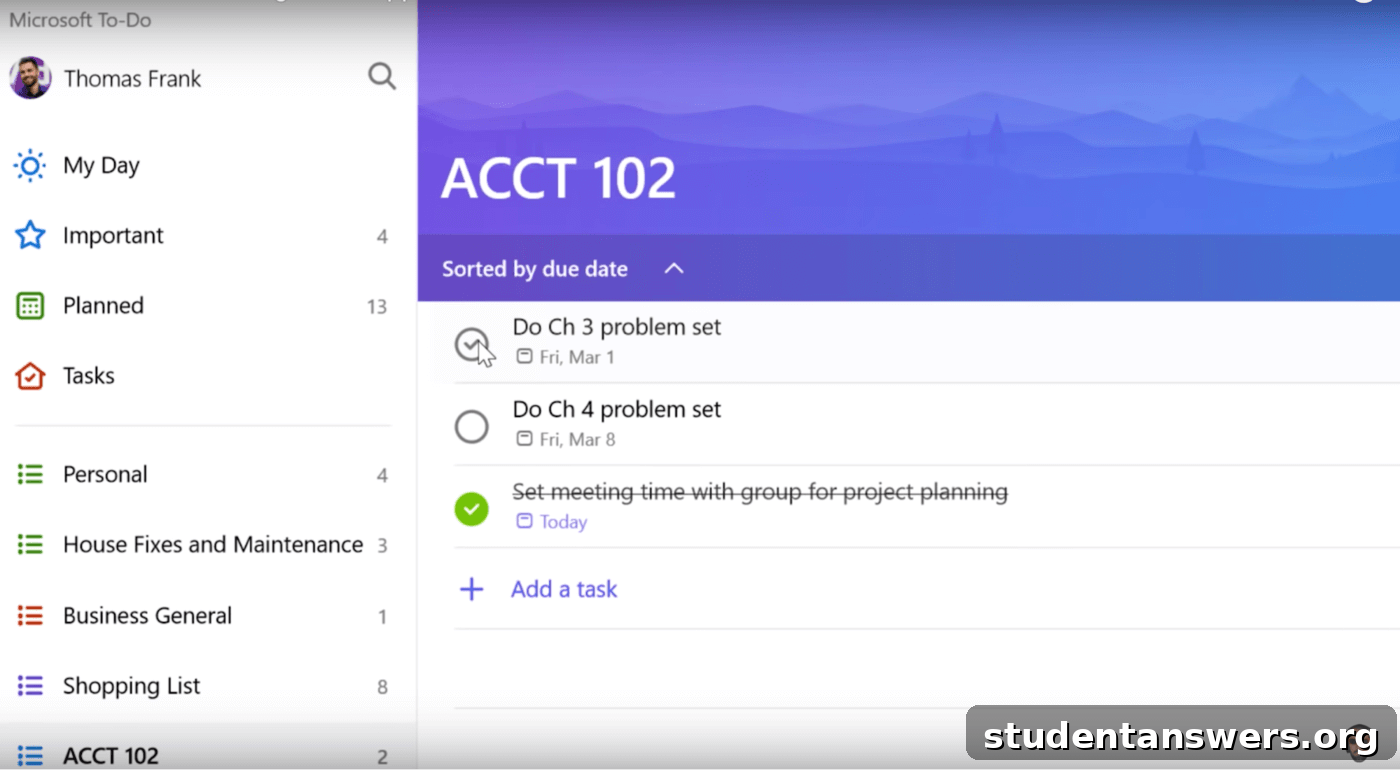
Overview: As the successor to the beloved Wunderlist, Microsoft To Do is a completely free and surprisingly capable task management app. It shines brightest for those deeply integrated into the Microsoft 365 ecosystem, offering seamless synchronization with Outlook and other Microsoft services.
Pros
- Completely Free. Unlike many competitors, Microsoft To Do offers its full feature set for free. There are no paid tiers or premium subscriptions. Features like reminders, file attachments, and sharing are all included at no cost, making it an incredible value.
- Well-Implemented Subtasks. Microsoft To Do handles subtasks exceptionally well. It refers to them as “Steps,” which function as a simple yet effective checklist within a parent task. This is perfect for breaking down larger tasks into smaller, manageable actions.
- Unique “My Day” Feature. The “My Day” view provides a clean slate every morning. Instead of automatically populating with today’s due tasks, it allows you to mindfully curate your daily to-do list by pulling in tasks from your other lists. This encourages daily planning and prioritization.
- Deep Outlook Integration. If you use Outlook, To Do is a game-changer. Flagged emails in your Outlook inbox automatically appear as tasks in a dedicated list within To Do, creating a seamless workflow between your email and your task list.
Cons
- Lacks Advanced Organizational Tools. The app’s simplicity is also its biggest weakness for power users. There are no tags, smart lists, or custom filters. Organization is limited to creating separate lists, which may not be sufficient for managing complex projects.
- Limited to Outlook Calendar. The calendar integration is exclusive to Outlook Calendar. If you rely on Google Calendar or Apple Calendar, you won’t be able to see your tasks and events in one place, which is a significant drawback for many users.
Price: Completely Free.
Platforms: Android, iOS, macOS, Windows, Web.
Google Tasks: The Minimalist Choice for Google Power Users
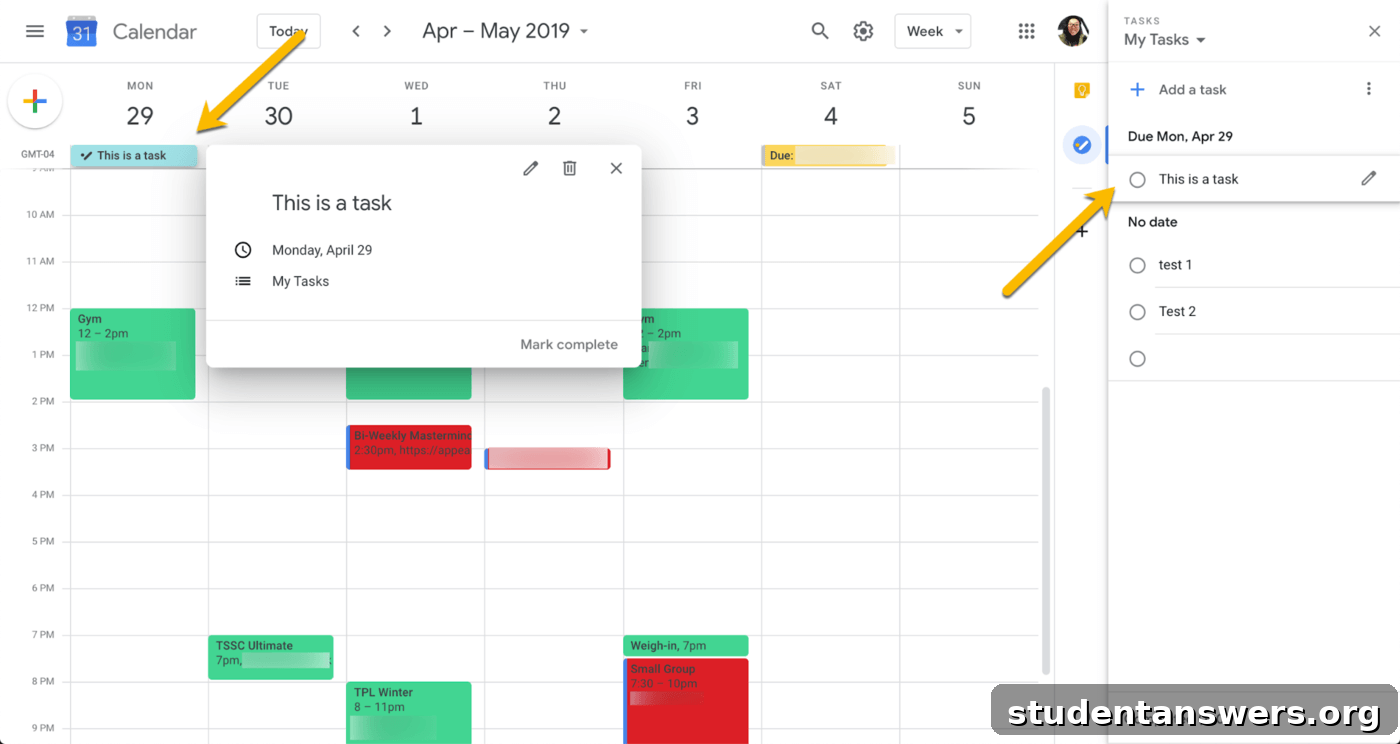
Overview: Google Tasks is a straightforward, no-frills to-do list app that is perfectly embedded within the Google ecosystem. It is not designed to compete with feature-rich apps but to serve as a simple and convenient task management solution for users of Gmail and Google Calendar.
Pros
- Seamless Google Integration. The primary strength of Google Tasks is its flawless integration with other Google services. You can create tasks directly from emails in Gmail, and they will appear in a convenient sidebar. This is ideal for turning actionable emails into to-dos without leaving your inbox.
- Superior Google Calendar View. When you assign a date and time to a task in Google Tasks, it appears directly on your Google Calendar, blocking out that time in your schedule. You can check off or edit tasks right from the calendar interface, making it one of the best calendar-based task management experiences available.
- Simple and Uncluttered. The app is incredibly easy to use. There are no complex features to learn. You can create lists, add tasks, set due dates, and create subtasks. This minimalist approach is perfect for users who want a simple way to keep track of their responsibilities.
Cons
- Very Limited Recurring Tasks. The recurring task functionality is basic. Crucially, you cannot create a recurring task that contains subtasks. This means that for any repeating process with multiple steps, you’ll have to create the subtasks manually each time.
- Poor Organizational Features. Beyond creating separate lists, there are virtually no organizational tools. You can only sort tasks manually or by due date. The lack of tags, priorities, or filters makes it difficult to manage a large volume of tasks or complex projects.
Price: Completely Free.
Platforms: Android, iOS, Web (integrated into Gmail, Calendar, etc.).
Notion: The All-in-One Digital Workspace
Overview: Notion transcends the label of a simple to-do list app. It is a powerful, all-in-one workspace that combines task management with note-taking, wikis, and databases. Its unparalleled flexibility allows you to build a completely customized productivity system from the ground up.
Pros
- Infinitely Customizable. With Notion, you are not confined to a predefined structure. You can build your to-do list as a simple checklist, a sophisticated Kanban board, a full-fledged calendar, or a powerful database with custom properties. It’s like a set of digital LEGOs for productivity.
- Powerful Database Functionality. At its core, Notion’s strength lies in its databases. You can create interconnected databases for tasks, projects, notes, and goals. Using filters, sorts, and various views, you can create dynamic dashboards that show you exactly the information you need, when you need it.
- Vibrant Community and Template Ecosystem. A massive and active community has grown around Notion. This means there is a vast library of pre-built templates available for nearly any use case, from student dashboards to content calendars. You can find countless tutorials and resources to help you master the platform.
Cons
- Significant Learning Curve. The same flexibility that makes Notion so powerful also creates a steep learning curve. Unlike dedicated to-do apps that you can pick up in minutes, mastering Notion requires a significant investment of time and effort to understand its core concepts.
- Potential for Over-complication. For users with simple needs, Notion can be overkill. If all you need is a place to jot down a grocery list, the complexity of setting up databases and pages can be more of a hindrance than a help.
Price: Free for personal use with a 5MB file upload limit. The Personal Pro plan is $5 per month for unlimited file uploads. Students and educators can get the Personal Pro plan for free.
Platforms: Android, iOS, macOS, Windows, Web.
WorkFlowy: The Ultimate Outlining and List-Making Tool
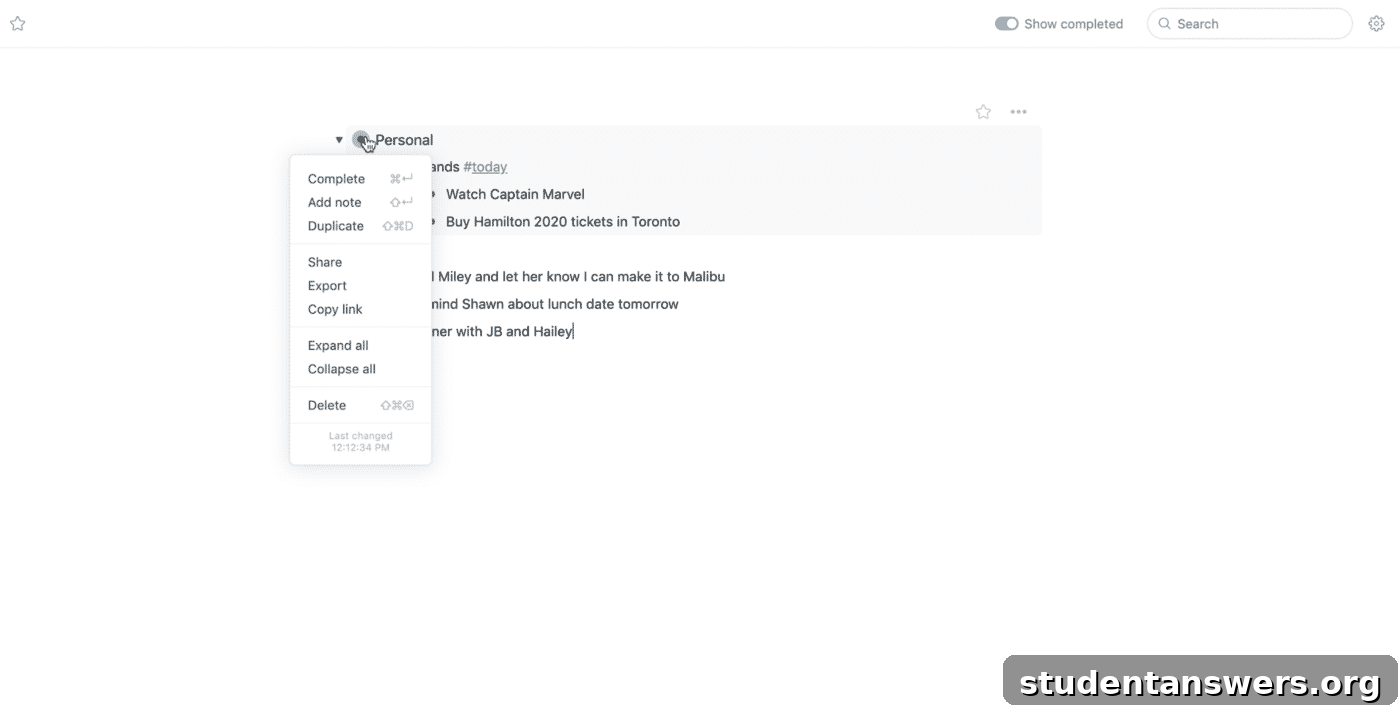
Overview: WorkFlowy is a beautifully simple yet profoundly powerful tool designed for one purpose: making lists. It functions as an infinitely nested bulleted list, allowing you to organize your thoughts, projects, and tasks in a hierarchical structure that is both flexible and intuitive.
Pros
- Infinitely Nestable Lists. The core concept of WorkFlowy is its “zoom” feature. Any bullet point can be expanded to become its own document with its own nested sub-bullets. This allows you to drill down from a high-level project overview to the most granular details of a specific task with a single click.
- Frictionless Capture and Outlining. WorkFlowy is unparalleled for brain dumps and outlining. There is no friction in getting your ideas down. You can type freely, indenting and outdenting to create structure as you go, making it the perfect tool for brainstorming sessions, meeting notes, and structuring complex documents.
- Powerful Sharing Capabilities. You can share any part of your WorkFlowy document with others. The permission settings are robust, allowing you to grant view-only or full-edit access to a specific bullet point and all its children, even with people who don’t have a WorkFlowy account.
Cons
- Not a Traditional To-Do App. It’s crucial to understand that WorkFlowy is an outliner, not a task manager in the traditional sense. It lacks features like due dates, reminders, and calendar views. If you need a tool to actively remind you of deadlines, WorkFlowy alone won’t suffice.
- Limited Free Plan. The free version is limited to 250 new bullets or items per month. While this may be enough for light use, anyone using it as their primary organizational tool will likely need to upgrade to the Pro plan.
Price: Free with a monthly limit. WorkFlowy Pro is $4.99 per month for unlimited bullets and advanced features. Discounts are available for students.
Platforms: Android, iOS, Linux, macOS, Windows, Web.
ClickUp: The “One App to Replace Them All”
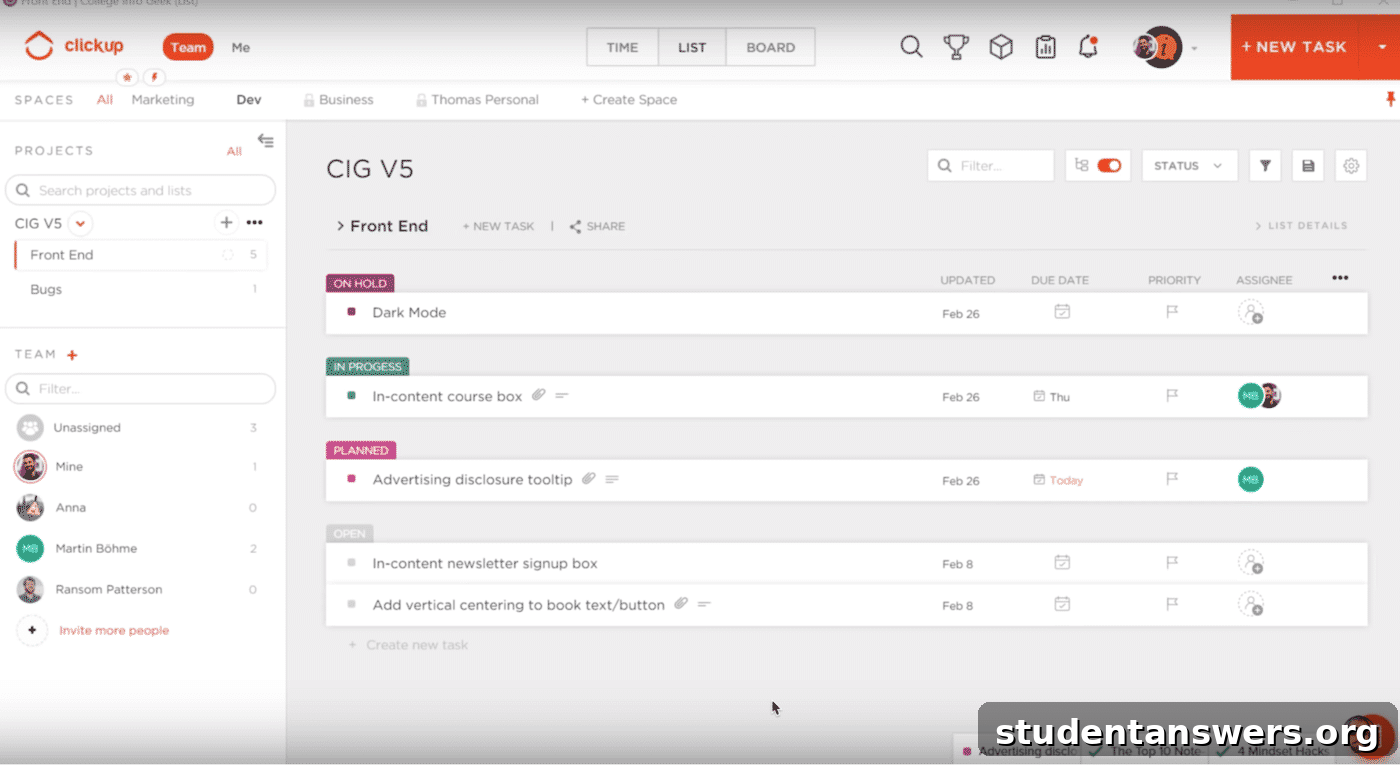
Overview: ClickUp markets itself as the “one app to replace them all,” and it comes impressively close to fulfilling that promise. It is an extremely powerful and customizable project management platform that offers a vast array of features to manage tasks, projects, and team collaboration.
Pros
- Multiple Project Views. ClickUp understands that different projects require different perspectives. It offers over 15 different ways to view your work, including a traditional list, a Kanban board, a calendar, a timeline (Gantt chart), and even a mind map. This flexibility ensures you can visualize your workflow in the way that makes the most sense to you.
- Deep Customization. From custom fields and task statuses to automated workflows, ClickUp allows you to tailor almost every aspect of the platform to your specific needs. You can create checklists within tasks, set dependencies, track time, and assign priorities.
- Generous Free Plan. For an app this powerful, the free plan is remarkably generous. It includes unlimited tasks, unlimited members, and access to most of the core features. The main limitation is a 100MB storage cap, but for personal task management, this is often sufficient.
Cons
- Can Be Overwhelming. The sheer number of features and customization options can be overwhelming for new users. Setting up ClickUp to work perfectly for you requires a significant initial investment of time, which can create friction when you just want to quickly capture a task.
- Primarily Team-Focused. Many of ClickUp’s best features, such as collaborative document editing, real-time chat, and workload management, are designed for teams. For a solo user, these features can feel like unnecessary clutter in the interface.
Price: Free Forever plan with 100MB of storage. The Unlimited plan starts at $5 per member per month and offers unlimited storage and more features.
Platforms: Android, iOS, Linux, macOS, Windows, Web.
Things 3: The Award-Winning Task Manager for Apple Users
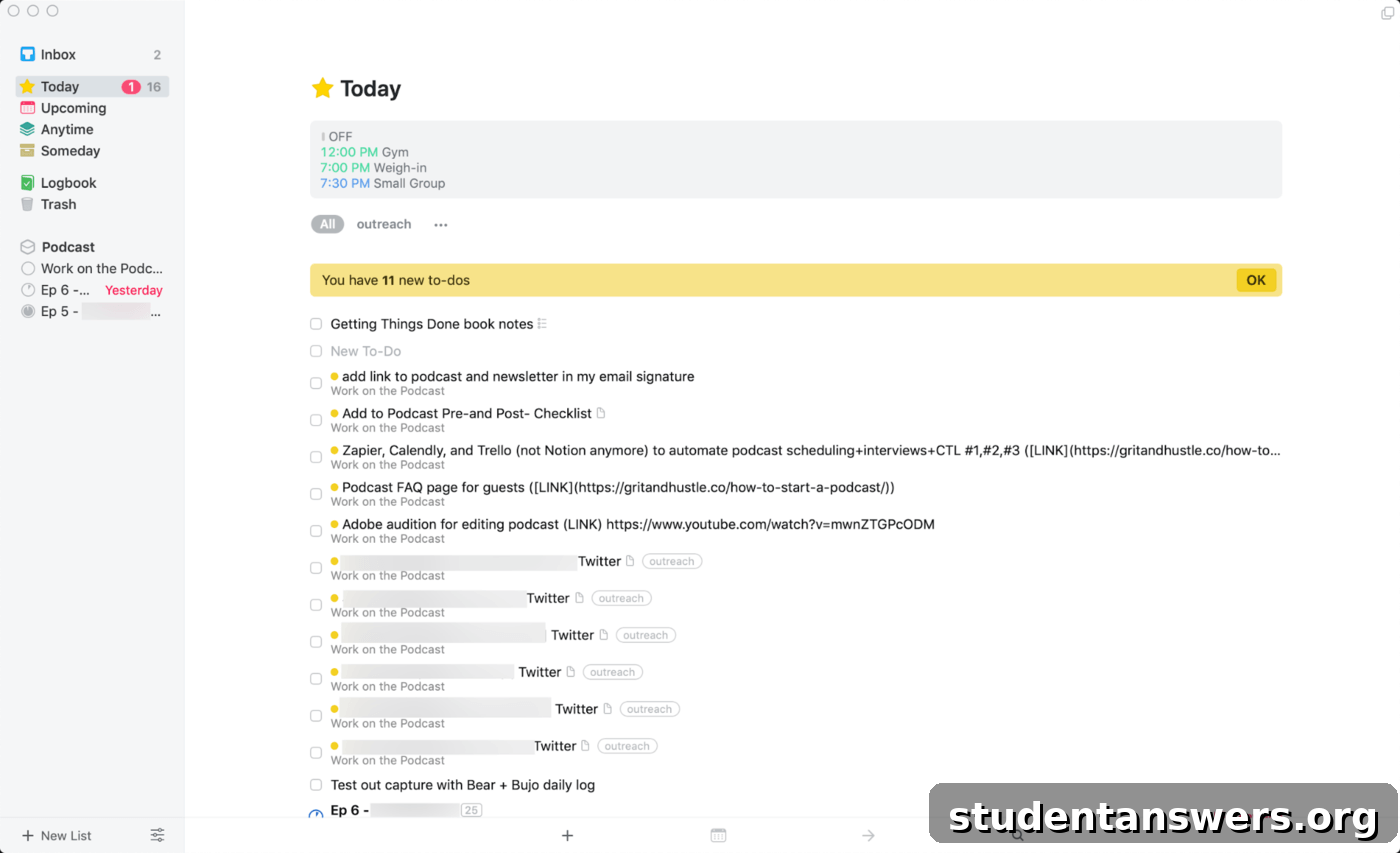
Overview: Things 3 is an exquisitely designed and highly intuitive task manager exclusively for the Apple ecosystem. It has won multiple Apple Design Awards for its thoughtful interface and seamless user experience. It is built around a simplified GTD (Getting Things Done) philosophy, helping you organize your life into Projects and Areas.
Pros
- Incredibly Intuitive Design. Things 3 is a masterclass in user interface design. Every interaction feels fluid and logical. It provides a clear hierarchical structure: high-level “Areas” (like Work, Personal, Health) contain specific “Projects,” which in turn contain “Tasks” and “Checklists.” This makes it easy to organize your entire life without feeling overwhelmed.
- Delightful User Experience. The app is full of small, delightful details. Drag and drop a few tasks onto a new “Project” header to create a project. The “This Evening” category allows you to defer tasks from your “Today” list that you’ll tackle after work. These thoughtful touches make managing your tasks a pleasure.
- Repeating Projects with Templates. A powerful feature is the ability to create repeating projects. You can set up a project template with all its necessary tasks and checklists, and then schedule it to repeat on a regular basis, which is perfect for recurring workflows like weekly reports or packing for trips.
Cons
- Apple Exclusive. The biggest drawback is that Things 3 is only available on Apple devices (Mac, iPhone, iPad, Apple Watch). There is no web or Windows version, making it a non-starter for users who work across different operating systems.
- Separate Purchases for Each Platform. While it’s a one-time purchase with no subscription, you must buy the app separately for macOS, iPhone, and iPad. The total cost to have it on all your devices is significant, approaching $80.
- Limited Calendar Integration. It integrates with Apple Calendar to show your events, but it doesn’t offer the deep two-way sync or integration with other calendar services that some competitors provide.
Price: One-time purchases: Mac ($49.99), iPad ($19.99), iPhone & Apple Watch ($9.99).
Platforms: macOS, iOS, iPadOS, watchOS.
OmniFocus: The Gold Standard for GTD Practitioners
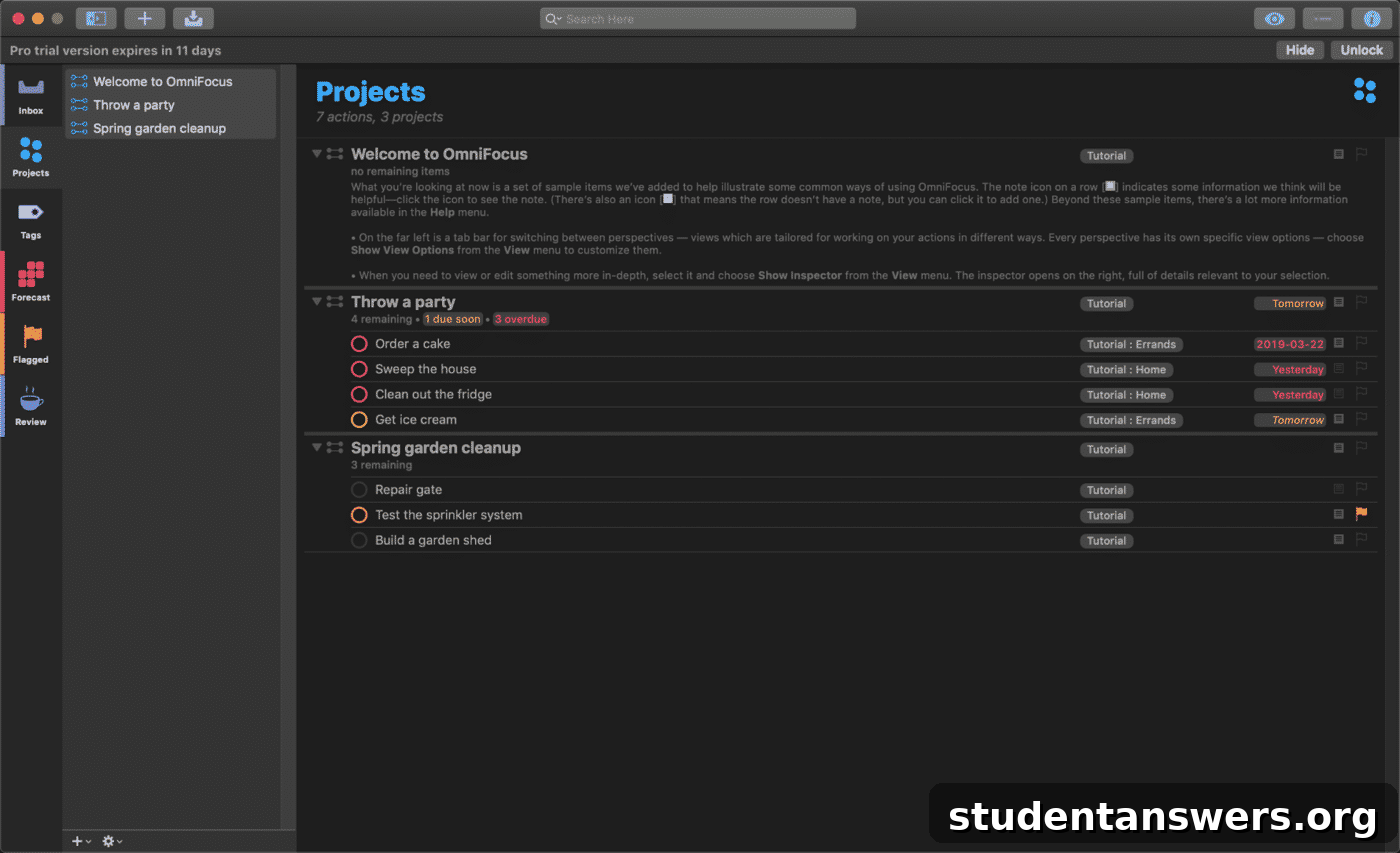
Overview: OmniFocus is a powerful, professional-grade task management application built from the ground up to support David Allen’s Getting Things Done (GTD) methodology. It is an incredibly robust system for users who are serious about implementing a comprehensive productivity workflow.
Pros
- Built for GTD. If you are a dedicated follower of the GTD system, OmniFocus is tailor-made for you. It has dedicated fields and views for every part of the methodology, including an inbox for capturing, projects, contexts (tags), and a powerful review perspective.
- Dedicated Review Perspective. A cornerstone of GTD is the weekly review. OmniFocus has a built-in “Review” perspective that guides you through each of your active projects on a regular schedule, ensuring nothing falls through the cracks.
- Powerful Defer and Due Dates. OmniFocus distinguishes between “Defer Until” dates (when a task becomes available to work on) and “Due” dates (when it must be completed). This is a crucial distinction for managing a large volume of tasks without being overwhelmed by things you can’t act on yet.
Cons
- Steep Learning Curve and Complexity. OmniFocus is a professional tool with a price and learning curve to match. It is not an app you can pick up and use intuitively; it requires a commitment to learning its system and, ideally, the GTD methodology it’s based on.
- Apple Ecosystem Lock-in. Like Things 3, OmniFocus is exclusive to Apple platforms. While there is a web version, it’s designed as a companion to the native Mac and iOS apps, not a standalone product.
- Subscription-Based Pricing. Unlike its competitor Things 3, OmniFocus uses a subscription model, which can be a significant ongoing expense for users who need access across all their devices.
Price: Starts at $9.99 per month or $99.99 per year after a 14-day free trial.
Platforms: macOS, iOS, iPadOS, watchOS, Web.
Asana: Team Collaboration Power for Personal Task Management
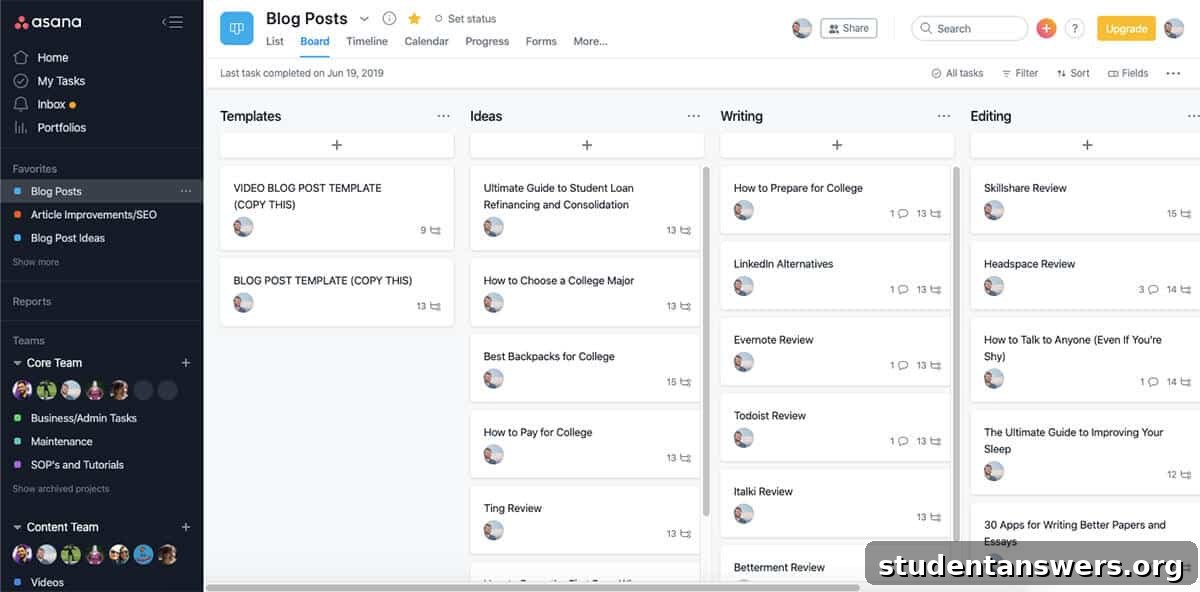
Overview: Asana is a leading project management tool designed primarily for team collaboration. However, its powerful features and generous free tier make it a viable, if sometimes complex, option for managing personal tasks and large-scale individual projects.
Pros
- Flexible List and Board Views. Asana allows you to visualize your projects in the way that suits you best. You can use a traditional top-to-bottom list view for simple checklists or switch to a Kanban-style board view to move tasks through different stages of completion (e.g., To Do, In Progress, Done).
- Excellent for Complex Projects. The app excels at breaking down large projects. You can create projects, divide them into sections, add tasks with due dates and assignees (even if it’s just you), and then break those tasks down further with subtasks. This hierarchical organization is great for keeping track of every detail.
- Useful Commenting Feature. While designed for team communication, the ability to add comments to any task is also useful for solo users. You can use it as a work log to track your progress, add notes to yourself, or attach relevant files and links directly to the task.
Cons
- Can Be Overkill for Individuals. As a tool built for teams, many of its features (like team conversations, workload management, and reporting dashboards) are unnecessary for personal task management. This can make the interface feel cluttered and more complicated than it needs to be.
- Interface Can Get Crowded. If you have many projects and tasks, the Asana interface can become busy and difficult to navigate. Without a disciplined approach to archiving completed tasks and organizing projects, it can quickly feel overwhelming.
Price: Free for individuals and small teams (up to 15 people). Premium plans with more advanced features start at $10.99 per user per month.
Platforms: Android, iOS, macOS, Windows, Web.
Take Control and Start Accomplishing Your Goals
Choosing a to-do list app can feel like a monumental task, but the perfect app for you is on this list. Whether you need the simple elegance of Things 3, the all-in-one power of Notion, or the free, seamless integration of Microsoft To Do, there is a tool that fits your unique workflow.
The most important step is to remember that a to-do list app is just a tool. The best app is the one that you will actually use consistently. Don’t get caught in “analysis paralysis.” Pick the one that resonates most with you, commit to using it for a week, and start experiencing the clarity and focus that comes from having an organized digital life.
Looking for more tools to enhance your workflow? Explore our comprehensive guide to the best overall productivity apps to build your ultimate digital toolkit.